Manual › Integrations
For adminsIntegrations 🔌
Mochii plays nicely with the tools you already use. Connect Slack, your calendar, your accounting, your PSA, and more, and Mochii quietly passes information back and forth so you're not copying things by hand. This page is the overview — what each connection does, and where to flip it on. Some live in your personal Settings; others are admin-only and live in Admin → Settings.
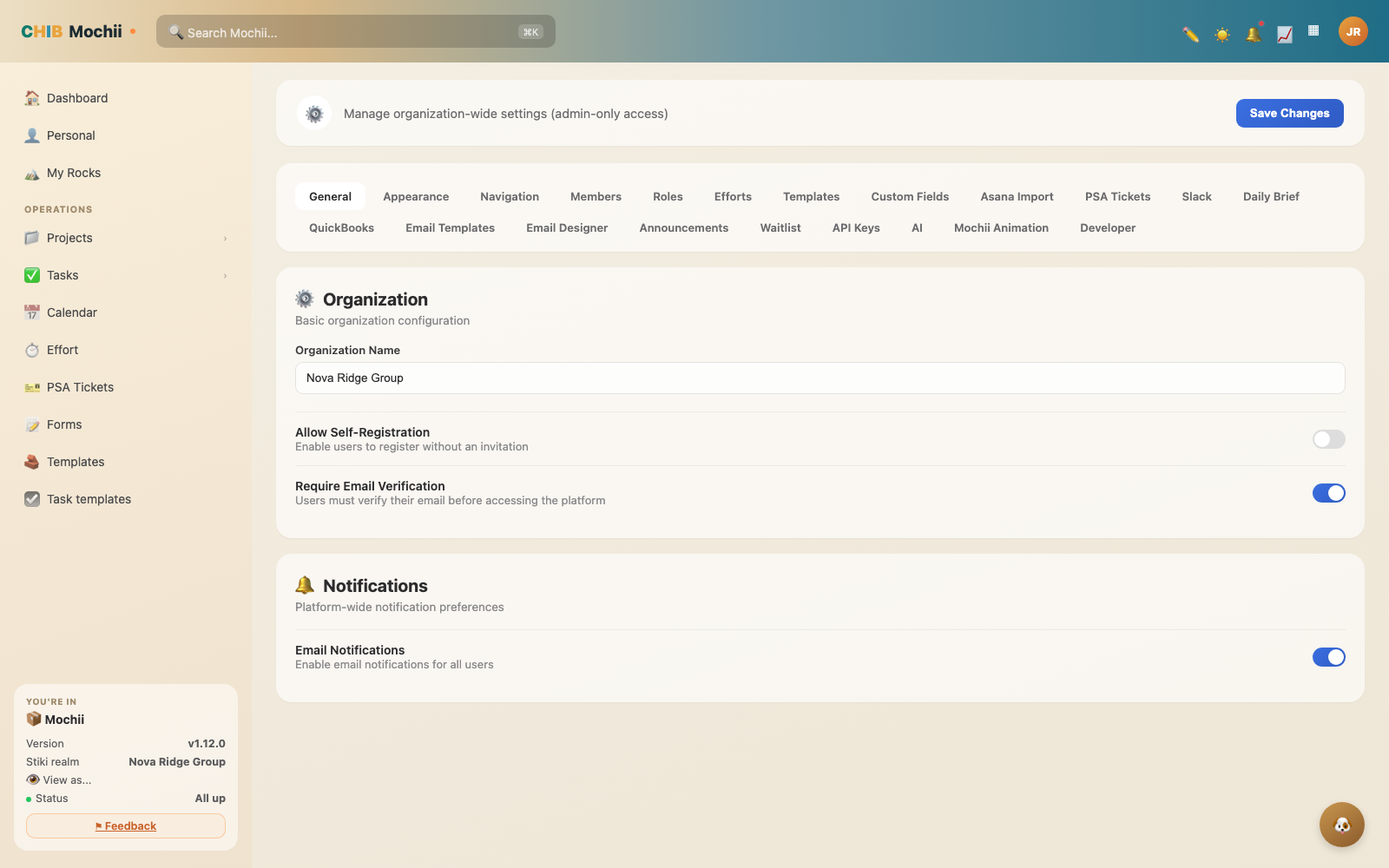
Most integrations are configured under Admin → Settings.
An integration is just a connection between Mochii and another app. Once it's set up, the two apps can share data — so a task in Mochii can show up on your phone's calendar, or a ticket from another system can land in your Mochii list. You connect it once and then mostly forget about it.
Who sets these up
There are two kinds of connections in Mochii, and it helps to know which is which:
- Personal connections live in Settings (your own account). You connect your Google, your Slack, your Teams. They only affect you.
- Workspace connections live in Admin → Settings and are set up once for the whole team by an administrator. Asana, QuickBooks, Autotask, and the Slack app itself live here.
If you don't see the admin connections below, you're probably not an admin — and that's by design. Workspace integrations touch the whole team, so they're locked to admin roles. Check Who can do what to see where you fit.
Slack & Microsoft Teams
Slack works two ways in Mochii. As an admin, you can install the Slack app for your workspace from Admin → Settings → Slack, which lets Mochii push notices into Slack. Separately, anyone can turn on personal Slack status sync from Settings: Mochii sets your Slack status to "in a meeting," "out," or "out sick" based on your calendar and your team's callouts, then clears it when you're back. To connect the personal sync, open Settings, find Slack status sync, and click Connect Slack for status sync.
Microsoft Teams does the same status trick. Turn on Microsoft Teams status sync from Settings and Mochii will set your Teams presence when you're out of office or focusing, and clear it when you're back. Click Connect Microsoft Teams to grant access.
If you turn on Slack status sync, switch off Slack's own Google Calendar status (in Slack: your photo → Update your status → "Google Calendar updates are on" → turn it off). Otherwise the two will fight over your status. Mochii will remind you of this when you connect.
Google Calendar & Gmail
Connecting your Google account does two separate jobs. First, it puts your due-dated tasks on your phone, watch, and desktop by syncing them to a dedicated "Mochii" calendar and task list — that whole story has its own page, so see Calendar. Second, granting read-only Gmail access lets Mochii find the meeting-recap emails your note-takers send, so it can link those notes onto your calendar — that's covered under Meetings. Both are personal connections you turn on from your own Settings.
Asana
Switching from Asana, or running both for a while? Mochii can import your Asana projects and tasks so you don't rebuild them by hand. An admin sets this up from Admin → Settings → Asana Import, where you connect Asana, map people and fields, and run the import. There's also a history and a sync log so you can see exactly what came across.
QuickBooks
Connect QuickBooks Online to tie your billing to your books. Once connected, Mochii can pull your QuickBooks customers in and push billable time back out to QuickBooks. An admin connects it from Admin → Settings → QuickBooks by clicking to authorize — Mochii sends you to QuickBooks' own sign-in to grant access, then brings you back.
Autotask (PSA)
If your team runs on a PSA — a Professional Services Automation tool, the ticketing-and-billing hub many MSPs live in — Mochii can sync your Autotask tickets in so you manage them alongside your projects. An admin sets up the connection under Admin → Settings → PSA Tickets, choosing which queues to pull from and how often to sync (manually, hourly, daily, or weekly). Synced tickets show up in Mochii's Autotask Tasks view.
PSA stands for Professional Services Automation — the system an MSP uses to track tickets, time, and billing for clients. Autotask is one of the popular ones. Connecting it means your tickets and your project work can finally live in the same place.
SignNow
SignNow is an e-signature tool. Once it's connected, Mochii shows your SignNow documents and tracks where each one is in the signing journey — sent, viewed, partially signed, or completed — so you can chase the stragglers without leaving Mochii. You'll find it under the admin integrations area as SignNow.
Zoom & Fireflies
Fireflies is an AI note-taker that joins your calls and writes up the notes. In Mochii it's connected once per workspace by an administrator as part of Meeting Intelligence; after that, matched transcripts simply appear on your calendar — there's nothing for individual users to set up. You'll see the Meeting Intelligence card in your Settings.
Zoom meeting creation is on the way. You can see it listed when you create a meeting from a task, but it's marked "coming soon" for now — only Google Meet is live today. Teams meeting creation is in the same boat (Teams status sync, above, already works).
Microsoft To Do
Live your life in Outlook and your phone's to-do widget? Connect Microsoft To Do — a personal connection, set up from your own Settings — and any task assigned to you with a due date pushes into a dedicated "Mochii" list inside Microsoft To Do. That way it shows up alongside your other to-dos, without you having to check Mochii itself.
Mark that task done in Microsoft To Do, and it mirrors back to Mochii and gets marked done there too.
This isn't a full two-way sync of every field — it's a one-way push for creation (Mochii → To Do), with just the completion status syncing back. Edit a due date or description in Microsoft To Do and Mochii won't see it. Mark it done, and Mochii will.
Webhooks
A webhook is a little "ping" one app sends another when something happens — it's how Mochii can receive a nudge from an outside system, or hand a message to one. Today this shows up in a couple of admin spots: the Slack app uses an incoming webhook to deliver messages, and admins have a webhook testing page for developers. It's a behind-the-scenes plumbing feature rather than a one-click integration, so most teams won't need to touch it directly.
Think of a webhook as a doorbell between apps. Instead of one app constantly asking "anything new yet?", the other app just rings the bell the moment something happens. It's a developer-level tool, so if you're not setting up custom automations you can safely ignore it.
AI assistants (MCP)
Mochii also connects to Claude and other AI assistants through an MCP connector, so you can create and manage projects and tasks just by asking. You sign in with Chibitek, and the assistant works as you, with your permissions. See Connect to AI (MCP) for the step-by-step.
Quick recap
- Personal connections (Google, Slack status, Teams status) live in your own Settings; workspace ones (Asana, QuickBooks, Autotask, the Slack app) are admin-only in Admin → Settings.
- Slack and Teams can auto-sync your out-of-office and focus status from your calendar.
- Google sends tasks to your devices (see Calendar) and finds meeting recaps in Gmail (see Meetings).
- Asana imports your old projects; QuickBooks ties billing to your books; Autotask syncs PSA tickets; SignNow tracks e-signatures.
- Fireflies is set up once per workspace; Zoom meeting creation is coming soon.
- Microsoft To Do pushes your due-dated tasks into a "Mochii" list there, with completion status syncing back to Mochii.
- Webhooks are behind-the-scenes plumbing most teams won't need to touch.