Manual › Captures
For power usersCaptures 🎙️
Mochii handles meeting notes two ways, and you can use both. Mochii's own note-taker joins your call as a participant, listens, and files a full AI note when the meeting ends. Meeting Intelligence goes and finds the notes your other note-takers already make — Fireflies, Otter, Fathom — and clips each one to the calendar event it belongs to. Either way, the notes end up where the meeting is, not in a tab you forgot.
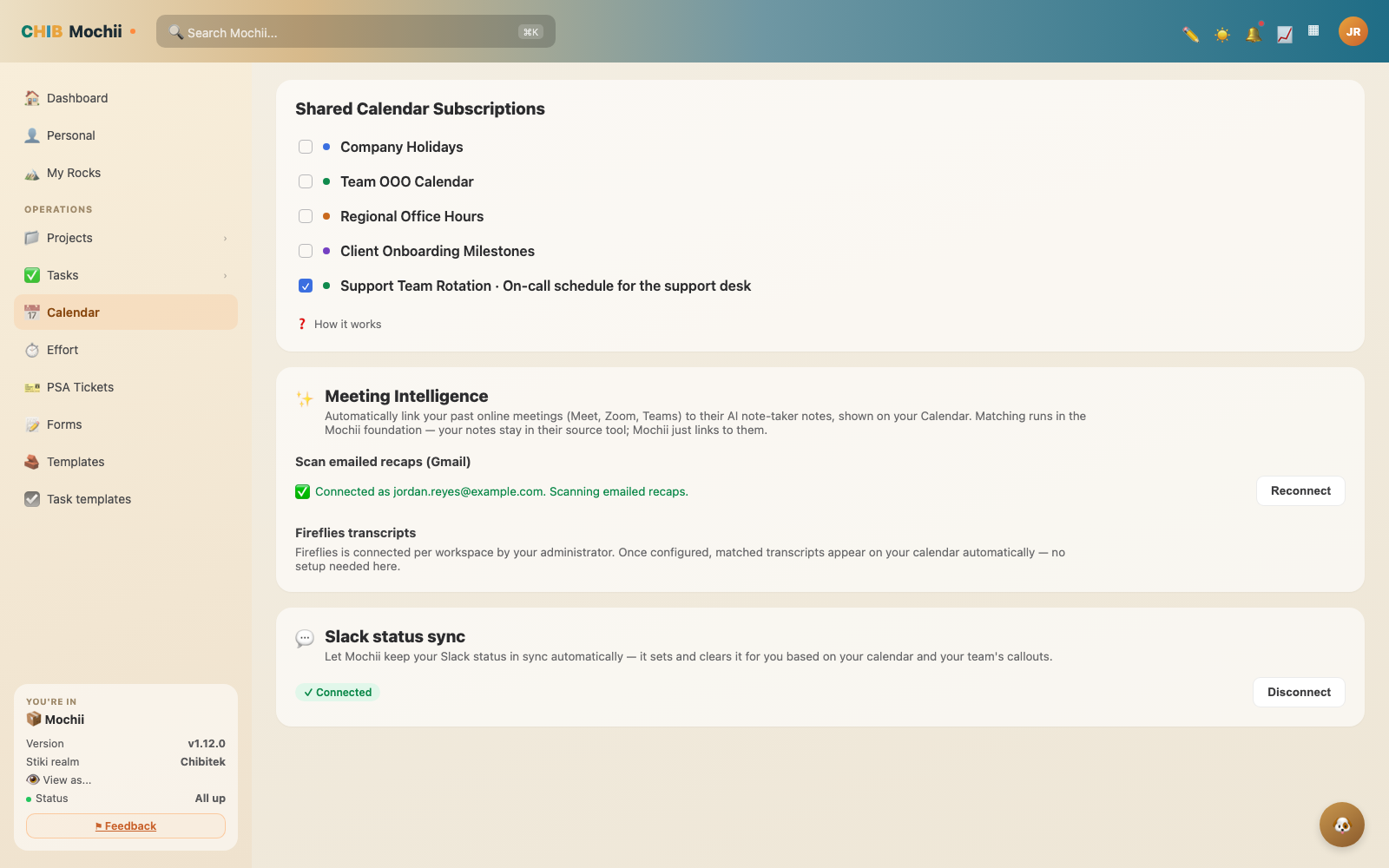
Meeting Intelligence in Settings — link Meet/Zoom/Teams notes and scan Gmail recaps.
Mochii's own note-taker
Send Mochii to a Google Meet and it shows up as a participant with its own branded tile — name, company, and getmochii.com — so everyone on the call can see where the notes come from. It announces itself in the meeting chat when it joins, and says so if it is recording. When the last person leaves, Mochii leaves too.
After the call it writes up what happened:
- A structured AI note — overview, decisions, deadlines, next steps.
- Suggested action items, with owners and due dates where it could tell.
- An optional recording — participant video, screen sharing and audio — played right next to the notes.
Recording is off until an administrator turns it on in Admin Settings. Every recording is encrypted with its own key before it leaves the recorder, and only someone who could already see the recording can open it. If nobody actually spoke, the meeting says so instead of promising notes that were never coming.
Getting Mochii into a meeting
There are three ways in, depending on where you are:
- The top bar. The camera button opens Send Mochii to a meeting — paste any Google Meet link, or create a new Meet (now, or scheduled for later) and Mochii joins by link; the host admits it from the waiting room. It works for calls that have nothing to do with a project or task.
- A task. The video-camera icon in the task drawer toolbar creates a meeting from the task itself and invites the project's people automatically — see Video meetings on the Tasks page.
- A project. The Meetings & Notes tab lists the project's meetings, and takes a pasted link too. Finished a call before Mochii wrote it up? Generate notes runs the write-up on demand.
When you send Mochii somewhere you can file the meeting under a company, or leave it in My meetings and file it later.
Autojoin and the Notetaker chip
Mochii can also join on its own, without anyone sending it. There are three levels, and the most specific one wins:
- Your organization's default — an administrator turns autojoin on in Admin Settings. It is off by default.
- Your own setting — turn the note-taker off for your meetings in Settings → Integrations → Notetakers.
- This one meeting — switch it either way from the meeting's card. A per-meeting choice beats your personal setting, which beats the organization default.
Every meeting card and calendar event carries a Notetaker: On / Notetaker: Off chip that says whether Mochii is coming and why — the org default, your setting, or a choice made on that meeting. Tap it to change just this one. There is also a Join Now button for a call that was never scheduled to be covered; it sends Mochii in without changing any setting.
Every join, and every decision not to join, is recorded — so who turned autojoin on, for which meeting, and when, is always answerable.
Some places require everyone on a call to agree to being recorded or transcribed. Mochii joins under its own name and announces itself in the chat, but that notice is not legal advice and does not replace your own consent practices. Google Meet is the platform Mochii can join today — Teams and Zoom meetings are logged in the audit trail as skipped, so an empty result is always explainable.
The Meetings page
Every meeting Mochii knows about lives on the Meetings page — project work, client calls, and ad-hoc links someone pasted from the top bar — with notes, recordings and status in one place. Meetings filed nowhere show under My meetings, and you can file them to a company from here after the fact.
Notes from your other note-takers
You may already run Fireflies, Otter, or Fathom on your calls. Meeting Intelligence doesn't sit in on those meetings — it looks at the notes those tools already create and matches them to the meetings on your Calendar. There are two ways it gets to them:
Scanning emailed recaps (Gmail)
Most note-takers email you a recap after the call. Give Mochii read-only Gmail access and it watches for those summary emails — from Otter, Read.ai, Fathom, tl;dv, and others — and links them to the right meeting.
Fireflies transcripts
If your workspace uses Fireflies, your administrator connects it once for the whole team. After that, matched transcripts show up on your calendar automatically — nothing for you to set up.
Once a note is matched, it appears right on the calendar event, tagged with the service it came from so you know what you're looking at.
Read-only means Mochii can look for recap emails but can't send, delete, or change anything in your inbox. Sign-in goes through Chibitek's secure login (Stiki SSO), so Mochii never sees your password or your whole inbox — just the meeting summaries it's hunting for.
Connect your Gmail
This is the part you set up yourself. It takes about thirty seconds.
- Go to Settings → Meeting Intelligence.
- Under Scan emailed recaps (Gmail), click Grant Gmail access.
- Approve the read-only access in the Google sign-in window.
- You'll land back in Mochii, and the card will show "Connected as [your email]. Scanning emailed recaps."
Already connected and something feels off? The same card shows a Reconnect button to refresh the link.
Matched, possible, and confirming
When Mochii links a note to a meeting, it tells you how sure it is. Open the event and you'll see the note under AI meeting notes with one of two badges:
- Matched — Mochii is confident this note belongs to this meeting (for example, the meeting link or calendar entry lines up exactly).
- Possible — it's a likely match based on timing and who was there, but worth a quick glance.
You're the final say. Each matched note has a Confirm button (yep, that's the one) and a Not this button (wrong meeting). Confirming helps keep your notes tidy and accurate.
Don't see any notes yet? Meeting Intelligence only matches notes to past calendar events, and it needs your note-taker to have actually produced a recap. Give it a little time after the meeting wraps, then check the event again.
Mochii suggests action items from every meeting it attends. Reviewing them in-app and promoting them into real tasks with a click is the next step — today that promotion is available through Mochii's API and MCP connector. When the in-app review inbox lands, we'll cover it here.
Meeting Intelligence may need to be switched on for your workspace before you'll see it. If Settings → Meeting Intelligence isn't there, or the cards look empty, check with your administrator — the feature can be enabled per workspace.
Quick recap
- Mochii's own note-taker joins your Google Meet calls, writes a full AI note with suggested action items, and can record the call (administrator turns recording on; it's off by default).
- Send it from the top bar, a task, or a project's Meetings & Notes tab — or let autojoin bring it automatically.
- The Notetaker: On/Off chip on every meeting says whether Mochii is coming and why; per-meeting beats personal beats the organization default.
- The Meetings page collects every meeting — project, client, or ad-hoc — with notes, recordings and status.
- Meeting Intelligence separately finds notes from Fireflies, Otter, Fathom and friends and clips them to the right calendar event as Matched or Possible.