Manual › Calendar
For everyoneCalendar 📆
Lists are great for "what's on my plate." The Calendar answers a different question: when. It lays your due-dated tasks and events out on a real calendar so you can see the week at a glance — and, if you connect Google, it quietly pushes your tasks to your phone so they nudge you even when Mochii isn't open.
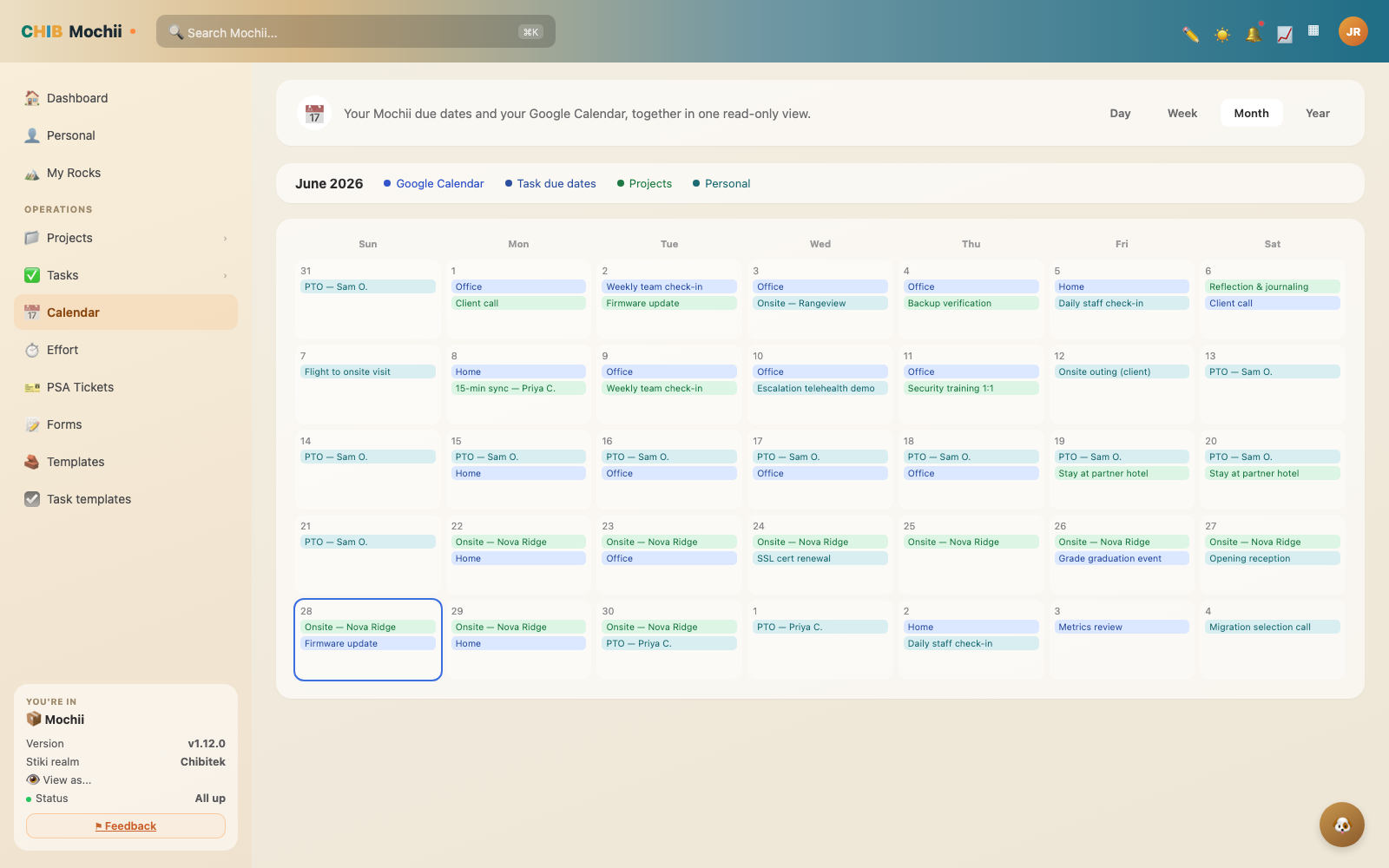
Your tasks and events laid out on the calendar.
What the Calendar shows
The Calendar pulls in two things:
- Your tasks that have a due date. No due date, no spot on the calendar — so this doubles as a gentle reminder to date your work.
- Events — meetings and time blocks you add right on the calendar.
Switch how much you see with the Day / Week / Month toggle. Day is great for "what's today," Week is the everyday workhorse, and Month is for zooming out to spot the busy stretches before they sneak up on you.
If a task isn't showing up here, it almost always means it has no due date. Open the task and give it one — it'll pop onto the calendar right away.
Send your tasks to your phone with Google
This is the part worth setting up. When you connect your Google account, Mochii creates two dedicated, clearly-labeled spots in your Google account and keeps them in sync for you:
A "Mochii" calendar
A calendar named Mochii shows up in Google Calendar. Each of your due tasks becomes an event with a reminder — so you get Google's native pop-ups on your phone, watch, and desktop.
A "Mochii" list in Google Tasks
A task list named Mochii appears in Google Tasks. Your Mochii to-dos land there too, and check themselves off in Google when you complete them in Mochii.
Why bother? Because once your tasks live in Google Tasks and Google Calendar, you control the reminders from your devices — the iPhone Reminders/Tasks pop-ups, the calendar alerts on your Mac or PC, the buzz on your watch. Mochii doesn't have to be open for a deadline to find you.
How to connect
- Go to Settings → Integrations.
- Find Google and click Connect (you'll grant access in a normal Google sign-in window).
- That's it. Mochii provisions your Mochii calendar and Mochii task list, then starts syncing.
The sync runs one direction: Mochii → Google. Mochii is the source of truth; Google is the messenger that carries your tasks to your devices. Change a due date in Mochii and Google updates. Editing the event in Google won't change the task back in Mochii.
What actually syncs
To keep your Google calendar from turning into noise, Mochii only sends across the tasks that are truly yours and time-bound. A task shows up in your Mochii calendar and Google Tasks list when all three are true:
- it's assigned to you,
- it has a due date, and
- it isn't deleted.
Complete it in Mochii and it gets checked off in Google. Remove the due date, reassign it, or delete it, and it quietly disappears from Google. No cleanup on your end.
Only tasks assigned to you with a due date sync. A task with no due date — or one assigned to a teammate — won't appear on your phone. If you want the reminder, make sure it's yours and dated.
Quick recap
- The Calendar shows your due-dated tasks and events in Day / Week / Month views.
- No due date means no calendar spot — date your tasks to see them.
- Connect Google in Settings → Integrations to get a Mochii calendar and a Mochii list in Google Tasks.
- That puts your tasks on your iPhone, desktop, and watch with native reminders you control.
- Sync is one-way (Mochii → Google) and only carries tasks assigned to you with a due date.