Manual › Tasks
For everyoneTasks ✅
Tasks are where the real work lives. A task is one thing that needs doing — "Call the vendor," "Ship the report," "Fix the printer (again)." This is the longest page in the manual on purpose, because tasks are the part of Mochii you'll touch every single day. Skim the bits you need.
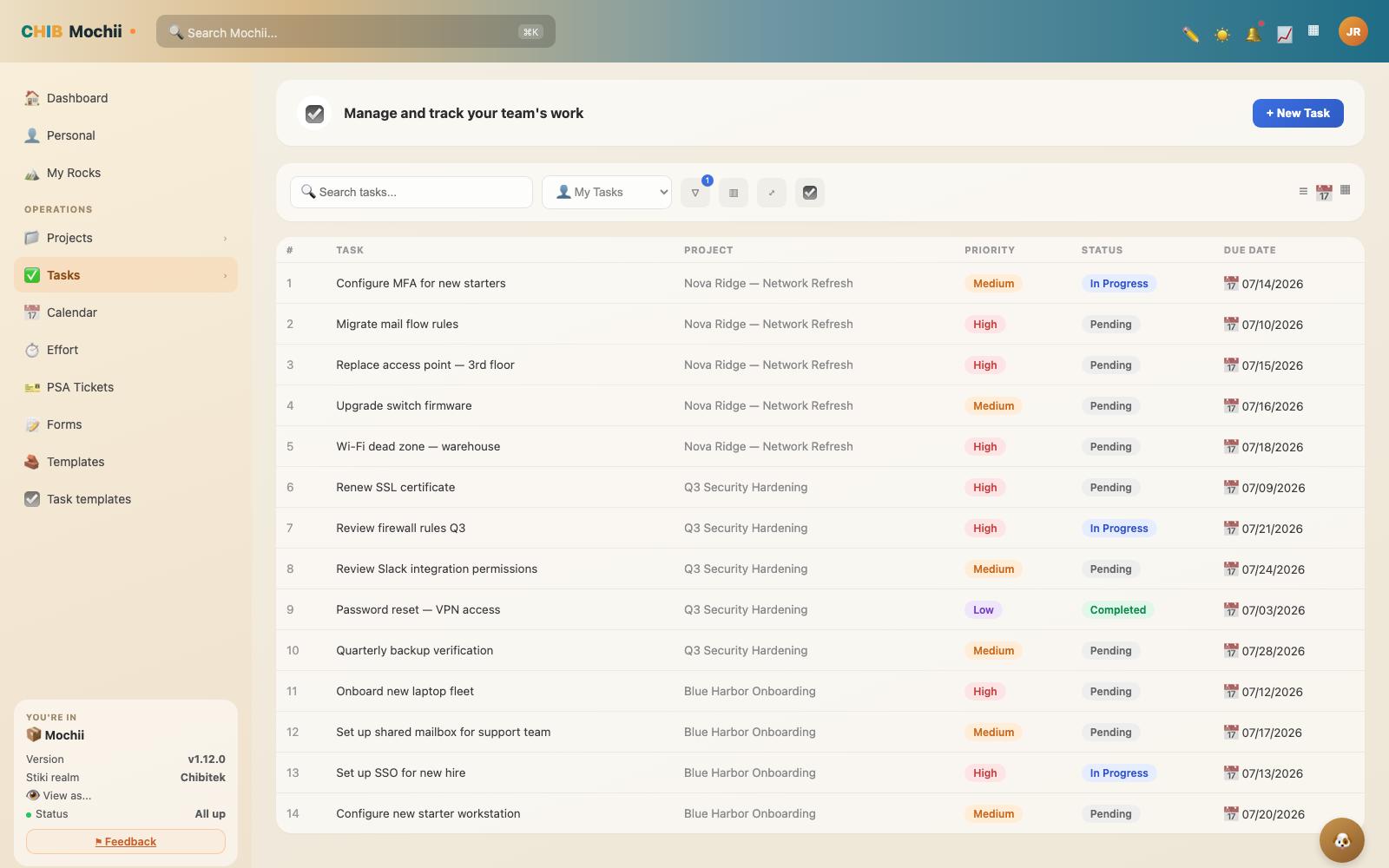
A task list with owners, due dates, and status.
Creating a task
You can add a task almost anywhere — inside a project, from your Dashboard, or from your task list. Click New Task (or the + button) and a quick box pops up. Only the title is required:
- Type a title — start with a verb. "Send Q3 invoice to Acme" beats "Acme invoice."
- Pick the project(s) it belongs to. (Yes, projects, plural — a task can live in more than one. Handy when one job matters to two teams.)
- Add the extras if you've got them: a description, a priority, a due date.
- Create it. The task opens up so you can fill in the rest.
Don't overthink it when you create a task. Get the title down before you forget, hit create, and fill in the details later. A captured task beats a perfect one you never wrote down.
The task drawer: mission control
Click any task and a panel slides in from the side. This is the task drawer — everything about that one task lives here, and you edit it right in place. Here's what you'll find:
| Field | What it's for |
|---|---|
| Title & description | The name of the task and the details. Click to edit either, right inline. |
| Assignee | The one person who owns getting this done. |
| Additional assignees | Other people actively working on it alongside the owner. |
| Status | Where the task stands (see the five statuses below). |
| Priority | How urgent it is (None, Low, Medium, High, Urgent). |
| Due date | When it needs to be done. |
| Project(s) | Which project bucket(s) it sits in — add or remove anytime. |
The five statuses
Status is how everyone knows, at a glance, where a task stands. Mochii keeps it simple with five:
| Status | Means |
|---|---|
| Pending | On the list, not started yet. |
| In Progress | Someone's actively working on it. |
| Review | The work's done and waiting on a check or approval. |
| Completed | Done and dusted. 🎉 |
| Cancelled | Called off — kept on record, not deleted. |
Subtasks: breaking it down
Some tasks are really five small tasks wearing a trench coat. For those, use subtasks — a checklist of smaller steps inside the main task. Open the task, find the Subtasks section, and add them one by one. You can give each subtask its own owner and due date. As you tick them off, the parent task shows how far along you are.
If a task keeps stalling, it's often too big. Break it into subtasks and suddenly there's an obvious "next thing to do." Momentum loves small steps.
Comments & @mentions
Every task has a comment thread, so the conversation about the work stays with the work — not buried in email. Type in the comment box to leave a note. To loop someone in, type @ and start their name; pick them from the list and they'll get a notification.
Some comments can be marked internal — those are visible only to your team, never to a client guest who's been invited to the project. Regular comments are visible to everyone on the task. So you can hash out the messy "how do we tell the client?" conversation internally, then post the polished version where they can see it.
@mentioning someone who isn't on the project pulls them into the conversation. That's usually what you want — just know that an @mention is a tap on the shoulder, not a silent note.
Attachments
Need to attach the contract, the screenshot, the spec? Drag a file straight onto the task, or click to browse for it. Once it's up, anyone on the task can preview, download, or remove it. The file lives with the task, so nobody's hunting through their inbox for "that PDF Sarah sent."
Custom fields
Every team tracks something a little different — a ticket number, a billing code, a "client sign-off?" checkbox. Custom fields are extra slots your admin can add to tasks to capture exactly that. If your team set any up, you'll see them in the task drawer, ready to fill in.
Custom fields are just your team's own labels on a task. Mochii ships with the basics (status, priority, due date); custom fields let your team add the specific stuff it cares about without cluttering everyone else's tasks.
Recurring tasks (set it and forget it)
Some work comes back like clockwork — the weekly backup check, the monthly report, the quarterly review. Instead of recreating those by hand, make a task recur. Set the rhythm, and Mochii creates a fresh copy each time it's due. You can choose:
- Daily, Weekly, Monthly, Quarterly, or Yearly, or
- A custom interval — "every 10 days," whatever fits.
You can also set an end date so it stops on its own, or switch it off whenever you like.
Recurring tasks are the closest thing Mochii has to a personal assistant. Anything you do on a schedule — turn it into a recurring task once and stop holding it in your head.
Participants: keeping people in the loop
Sometimes you want someone to follow a task without being the one doing it — a manager who wants updates, a teammate who's affected by it. Add them as participants. They'll stay in the loop on what's happening without it landing on their to-do list. Think "cc," not "assign."
Linking tasks & projects
Work doesn't happen in a vacuum. From the drawer you can connect a task to other projects (so it shows up in each), and link related tasks — including ones this task is waiting on. That way, if Task B can't start until Task A is finished, the connection is right there instead of living in someone's memory.
Logging your time
If your team tracks effort — for billing, planning, or just knowing where the hours go — you can log time on a task. Punch in how long something took (or run a timer while you work). It rolls up into your team's time reports, so "where did the week go?" actually has an answer.
Video meetings, right from the task
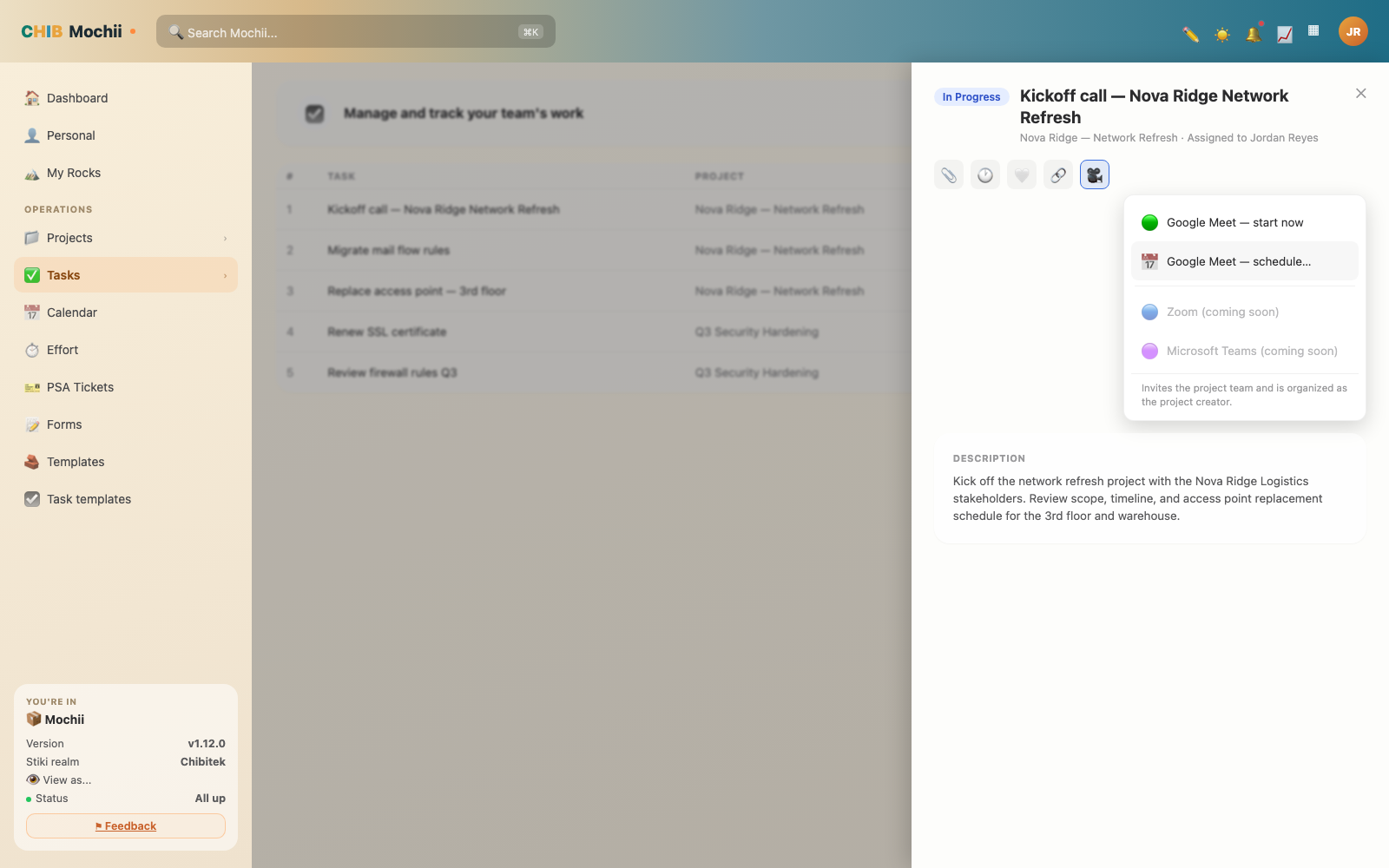
The video meeting menu inside a task.
Sometimes a task needs a conversation, not just a comment. In the task drawer toolbar — right alongside attachments, time logging, like, and copy-link — there's a small video-camera icon. Hover it and you'll see Create video meeting. Click it and a short menu drops down with your options.
- Google Meet — start now creates an instant meeting running from right now to about 30 minutes out.
- Google Meet — schedule… opens a small dialog so you can pick a date, time, and duration instead.
Either way, Mochii does the annoying part for you: it looks at who's on the task's project — the project's members and team members — figures out their emails, and adds them as attendees automatically. No hunting down addresses, no forgetting someone.
Want notes from it? Mochii's own note-taker can join the call, write up what happened, and file suggested action items afterwards — see Captures. The meeting card shows a Notetaker: On/Off chip so you always know whether Mochii is coming.
The meeting is normally organized under the project creator's Google account. If that person hasn't connected Google yet (see Settings), Mochii quietly organizes it under your account instead and lets you know that's what happened. Either way, you'll need at least one Google account connected somewhere in the mix — yours or theirs — for this to work. If nobody involved has one connected, Mochii will tell you to connect Google in Settings before it can create the meeting.
Once it's created, a confirmation toast pops up showing how many people got invited, with an Open button that jumps straight to the meeting link. Behind the scenes, it's a real event on Google Calendar with a genuine Google Meet link attached — so it'll show up on everyone's calendar too, not just in Mochii.
You'll spot Zoom and Microsoft Teams sitting in that same menu, greyed out. They're on the way, but not live yet — for now, Google Meet is the one that actually creates a meeting.
This same button and flow works inside an EOS L10 meeting too (see the EOS module page) — there it invites the L10 attendees instead of a project's members, and it's always organized as you, no fallback needed.
Bulk edit: change many at once
Got twenty tasks that all need the same change? Don't open them one at a time. In a task list, tick the checkboxes next to the ones you want (or select all), and a toolbar appears. From there you can change status, priority, assignee, or due date for the whole batch in one move.
Reassigning a teammate's work because they're out sick? Bulk edit is your friend — select their tasks, change the assignee, done in seconds.
Quick recap
- A task is one thing to do. Create it fast, fill in details later.
- The task drawer is mission control — assignee, status, priority, due date, and everything else, edited in place.
- Five statuses: Pending → In Progress → Review → Completed (or Cancelled).
- Subtasks break big work into steps; comments & @mentions keep the conversation on the task (with internal-only notes for client work).
- Attachments, custom fields, participants, and time logging round out each task.
- Recurring tasks repeat themselves; links connect tasks that depend on each other; bulk edit changes many at once.
- The video-camera icon in the task drawer creates a Google Meet meeting and auto-invites the project's people — Zoom and Teams are coming soon.