Manual › Getting around
Step 2 · For everyoneGetting around 🧭
Mochii has a lot of rooms, but you'll spend most of your time in just a few. This page is the floor plan: the menu on the left, the search box that gets you anywhere fast, the notification bell, and the Dashboard you start on every day.
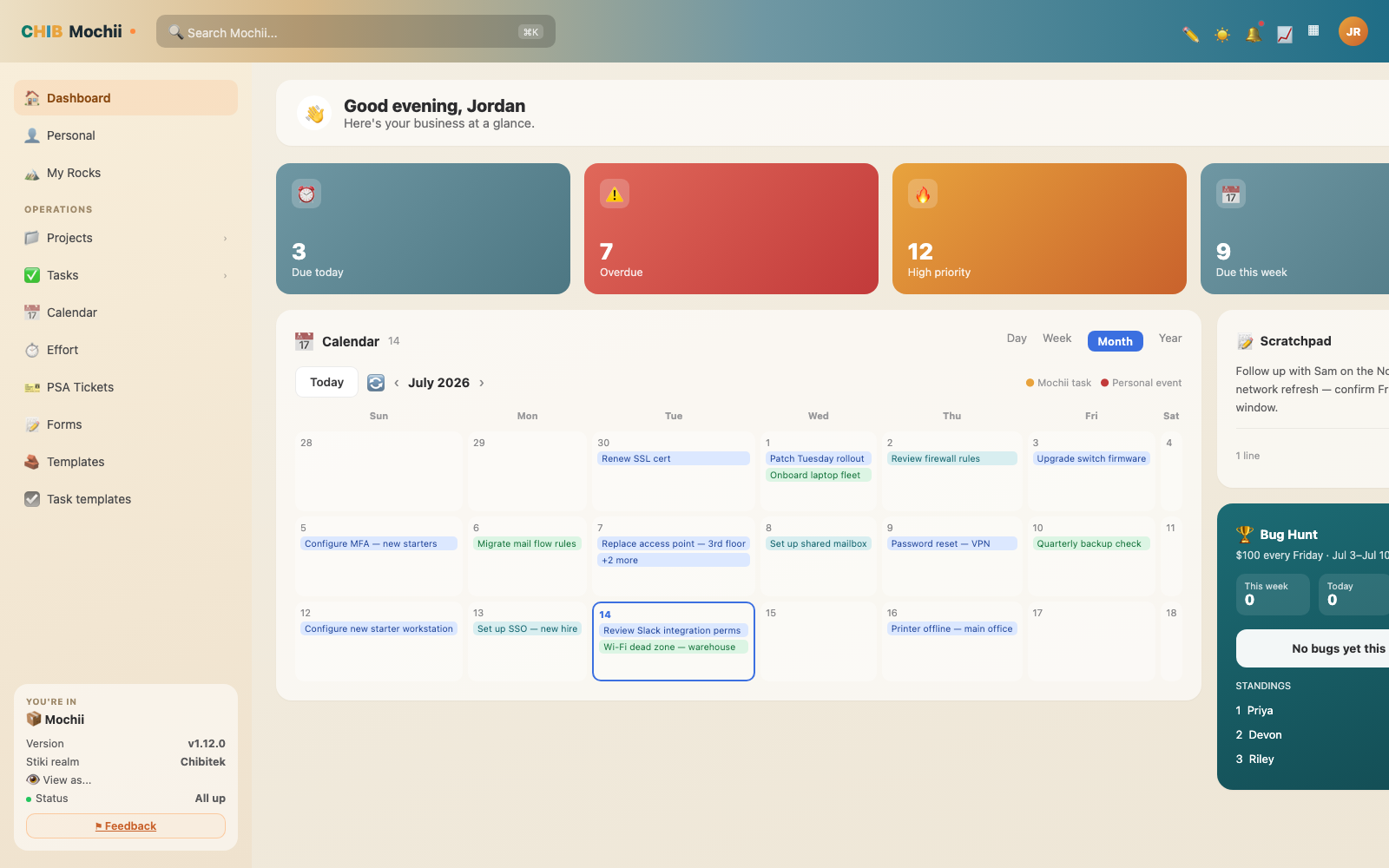
The Dashboard — your day at a glance.
The sidebar: your map
That menu running down the left side is your main way to get around. It's grouped so related things sit together. From top to bottom, you'll generally see:
| Group | What's in it |
|---|---|
| Top of the menu | Dashboard (your home), Personal (your private to-dos), and My Rocks (your big quarterly goals). |
| Operations | The daily work: Projects, Tasks, Calendar, Effort (time tracking), Tickets, Forms, and templates. |
| Clients | Your customer records: the client list, projects by client, and tracked devices & licenses. |
| EOS / Strategy | The big-picture tools: Rocks, Issues, Scorecard, and weekly meetings. (We cover these on the EOS page.) |
| Company | Leadership dashboards and reports — the view from 30,000 feet. |
| Admin | The control room for people who set Mochii up. Most folks won't see this — and that's by design. |
Mochii only shows you the doors you're allowed to open. Your role (what you're allowed to do) and what your team has switched on decide which items appear. So if a teammate has an "Admin" section and you don't — nothing's broken. You just have a different job. See Who can do what for the full story.
Star your favorites
Got a project you live in? Click the little star on it. Starred projects pop up right under Projects in the menu, so your go-to work is always one click away. You can drag them to reorder, too.
Switch languages 🌐
Up in the top bar — the header row with the search box and icons — there's a small globe icon. Click it to switch the whole staff app — sidebar, buttons, everything — between English, Japanese (日本語), and Spanish (Español).
It's a simple click-and-switch, no page reload drama, and Mochii remembers your choice next time you sign in.
Search anything (the command palette)
The quickest way around Mochii isn't the menu at all — it's the command palette. Click the search box up top, or just press Cmd+K (Mac) or Ctrl+K (Windows) from anywhere. A search window pops open in the middle of the screen, ready to type.
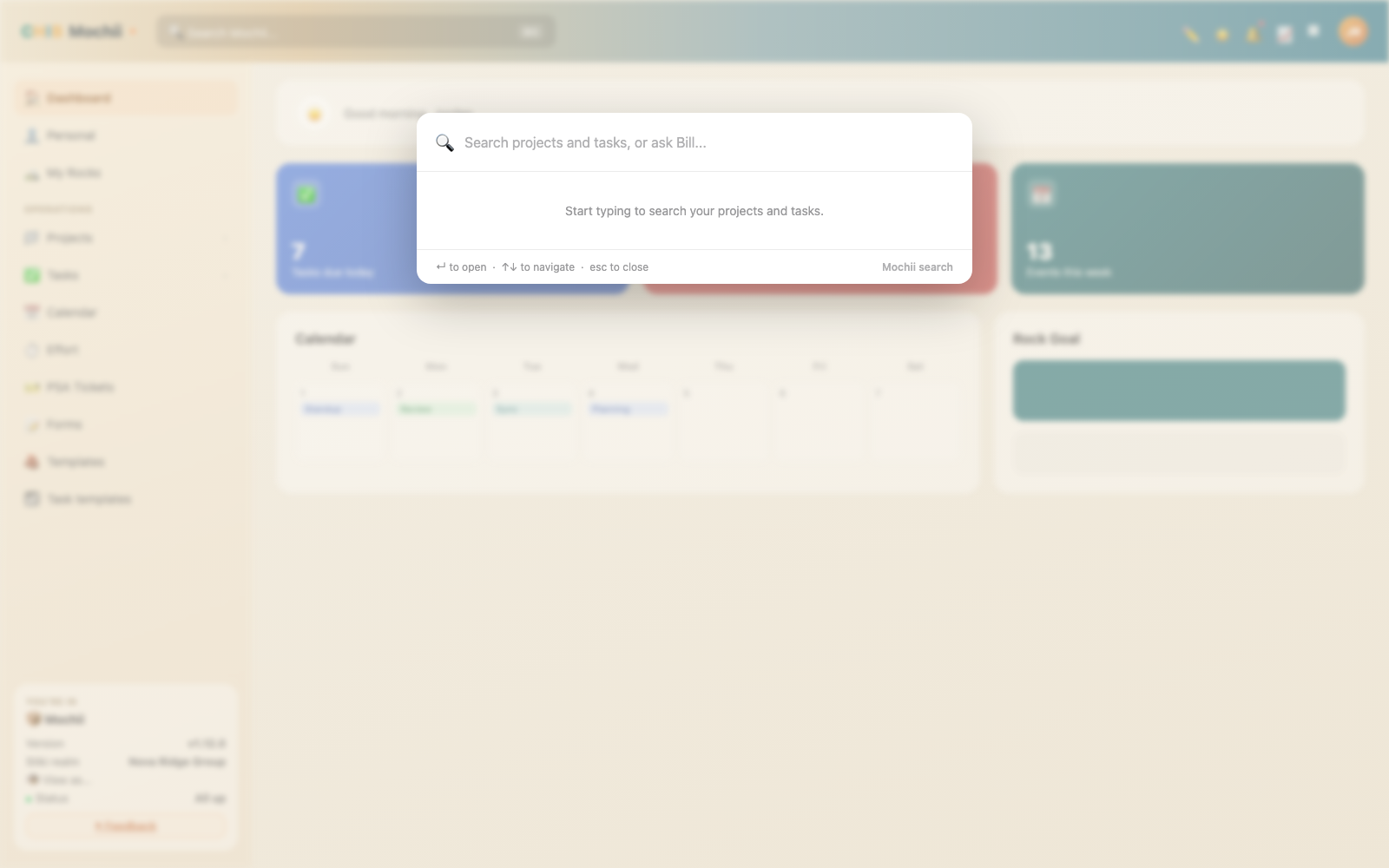
Press Cmd / Ctrl + K to jump anywhere.
Start typing and Mochii instantly searches your workspace and shows two groups of results:
- Projects — matched by name. Hit one to jump straight to it. (You can even star a project right from here to pin it to your menu.)
- Tasks — matched by title. Pick one and it opens in the task drawer, right where you are.
It's all keyboard-friendly: use the ↑ / ↓ arrows to move through results, Enter to open the highlighted one, and Esc to close. The little hint along the bottom of the window reminds you.
If you learn one keyboard shortcut in all of Mochii, make it Cmd/Ctrl+K. It's the "take me to…" button for the whole app, and it'll save you more clicks than anything else here.
Ask Bill, right from search
Type a few words and you'll often see an Ask Bill suggestion appear at the top of the results — a one-line answer from Mochii's built-in assistant. If your search doesn't match any project or task, Mochii offers to hand your question straight to Bill instead. So search is both a "find it" box and a "just ask" box, all in one.
The notification bell
The bell at the top-right is how Mochii taps you on the shoulder. It lights up when something needs you, like:
- A task gets assigned to you,
- Someone @mentions you in a comment,
- A task you care about is finished, or
- Someone replies to your comment.
Click the bell to see your recent alerts. Everything updates live — you don't have to refresh the page to find out something happened.
There's more to it than the bell — you can fine-tune what you're told about and how. For the full story, see Notifications.
The Dashboard: your daily home base
Every time you sign in, you land here. Think of the Dashboard as your morning-coffee view — a quick read on what's on your plate before you dive in. Depending on what your team turned on, you'll see cards like:
Your numbers
At-a-glance counts: tasks assigned to you, what's due today and this week, and how often you finish on time.
Calendar
A month view with your due dates marked, so nothing sneaks up on you.
My tasks
Your personal to-do list, sorted so the urgent stuff floats to the top.
Projects
Cards for your active projects with task counts and what changed recently.
Scratchpad
A quick notepad for the thought you'll lose if you don't jot it down right now.
Mentions
Recent comments where someone @mentioned you, so you can reply without digging.
Quick actions
One-tap shortcuts to start a task or project without hunting through menus.
Make it yours
Don't love the default layout? Click the little pencil / Customize button on the Dashboard. You can switch cards on or off and even change the background color, so your home base looks the way you want it.
Hunt for the light / dark mode switch up top. Late-night work or bright-office glare — Mochii flips to match. Your eyes will thank you.
On your iPhone (beta)
Mochii has a native iPhone app, currently in beta. It signs in with the same Chibitek account and reads the same projects, tasks, and data as the web — it's just Mochii in your pocket, for checking your work, updating statuses, and staying in the loop on the go.
The iPhone app is an Apple TestFlight beta. In the web app, open Settings → "Get Mochii on iPhone" to join — the invite link is rolling out soon. Not every web feature has made the jump yet.
Quick recap
- The left menu is grouped by what you're doing; you only see the parts your role unlocks.
- Star the projects you live in to pin them to the menu.
- Search with
Cmd/Ctrl+Kjumps you to any project or task — and can hand a question to Ask Bill. - The bell gives you live alerts when something needs you; see Notifications for the details.
- The Dashboard is your daily home base — and you can customize which cards show up.