Manual › Notifications
For everyoneNotifications 🔔
Mochii is good at tapping you on the shoulder when something needs you — a task lands on your plate, someone @mentions you, a deadline creeps up. This page covers the Inbox where those alerts pile up, how to choose exactly what reaches you, and the three different ways Mochii can deliver the news.
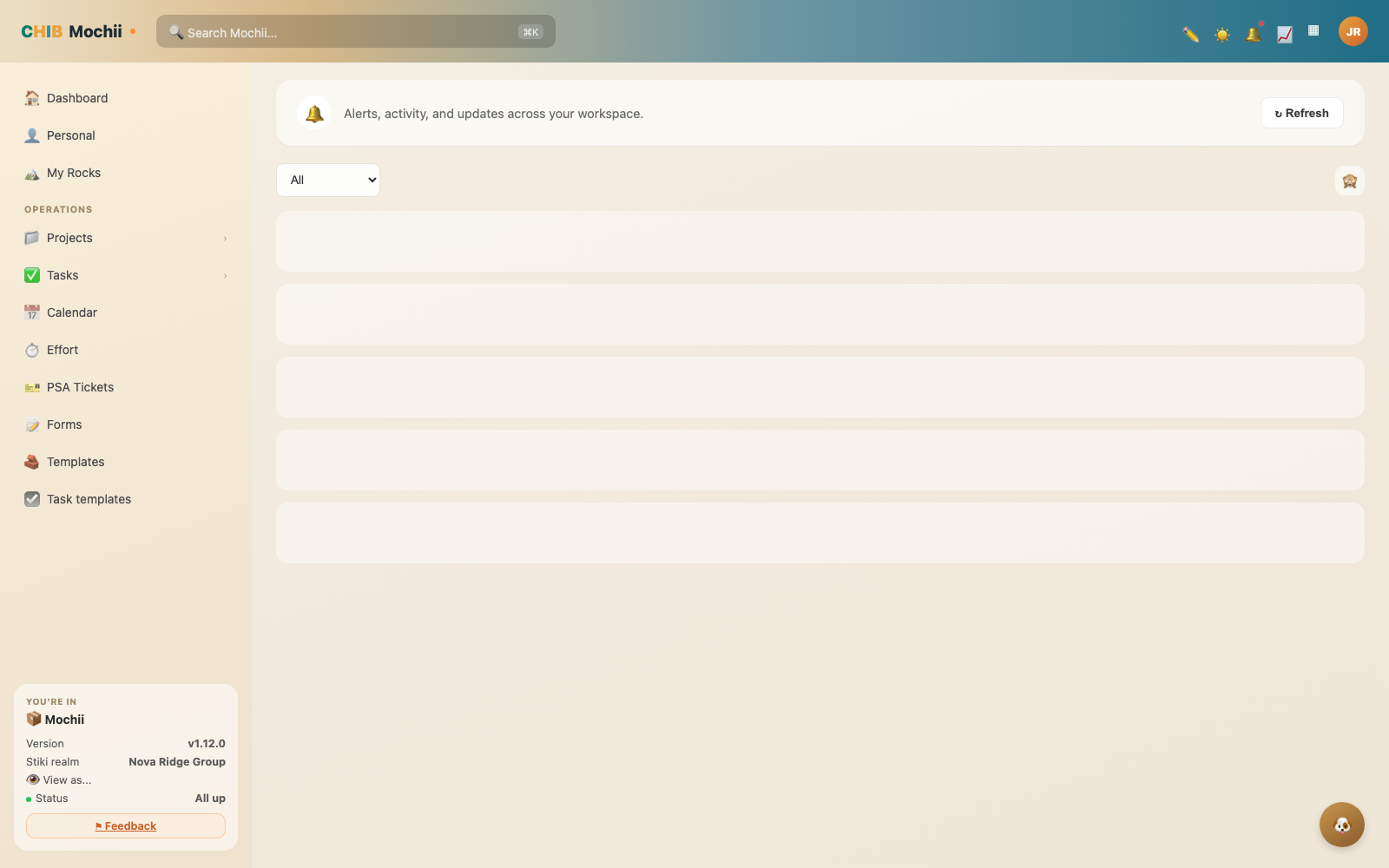
Your notifications inbox.
The Inbox: everything in one place
Click the bell at the top of the app and you'll land in your Inbox. It's the full-page view of everything happening across your workspace, gathered in one spot. You'll see two kinds of things:
- Alerts — the stuff aimed right at you: tasks assigned to you, @mentions, comments on your tasks, and due-date warnings.
- Activity — the wider feed of what's changing on the work you follow, grouped by day.
Alerts are sorted by how urgent they are, under friendly headers:
| Group | What's in it |
|---|---|
| 🔴 Critical | Things that are overdue or due today — the can't-wait pile. |
| 🟡 This Week | Coming up soon, so they don't sneak up on you. |
| 🔵 FYI | Good to know: mentions, assignments, comments. |
Use the filter pills across the top to narrow things down — All, Alerts, Activity, Mentioned, Assigned to me, or Unread. Click any alert to jump straight to the task or project it's about. Reading it marks it read, and the Mark all read button clears the unread dots in one go.
Living in the Assigned to me and Unread filters is a great morning habit. Two clicks and you know exactly what's new and what's yours, without scrolling past everything else.
Three ways Mochii reaches you
Beyond the Inbox, Mochii can deliver the same alerts through other channels so you don't have to keep the app open. There are three:
In-app
The bell and your Inbox, updating live. This is always on — it's just Mochii itself.
A message in your inbox when something happens. On by default for each category, and you choose which ones.
Browser pop-ups
Native desktop notifications that appear even when Mochii is hidden in the background. Off until you switch it on.
Choosing what reaches you
You control all of this from Settings → Notification Preferences (scroll to the bottom of the Settings page). Preferences are split by category, so you can be loud about the things that matter and quiet about the rest. The categories are:
| Category | Fires when… |
|---|---|
| Task assigned to me | You become the assignee of a task. |
| Mentions in comments | Someone @mentions you in a comment. |
| Comments on my tasks | Someone comments on a task assigned to you. |
| Due-date changes | The due date of one of your tasks changes. |
| Skippy draft replies | Skippy drafts an email reply for you (it links you to Gmail). |
Email notifications
Under Email Notifications, each category above has its own switch. They start on, so flip off anything you'd rather not get in your inbox. Click Save Preferences when you're done. There's also a Send Test Email button — click it to confirm email and in-app notifications are working for your account.
Browser pop-ups (web push)
Browser notifications are the ones that pop up on your desktop even when you're working in another window. They're off until you turn them on, because your browser has to ask your permission first.
- Go to Settings → Notification Preferences → Browser Notifications.
- Flip Enable browser notifications on. Your browser pops up a permission box — click Allow.
- Once it's on, a second set of per-category switches appears, so you can pick which alerts earn a pop-up (separate from your email choices).
If the switch is greyed out or missing, it's usually one of three things: your browser doesn't support push notifications, push isn't set up for your deployment yet, or you previously blocked notifications for Mochii. For that last one, Mochii will tell you to re-enable them in your browser's site settings, then try the switch again.
Want reminders on your phone?
Email and browser pop-ups cover your desk. To get task reminders on your phone — the native buzz on your iPhone, watch, and calendar — connect your Google account. Mochii then pushes your due-dated tasks into Google Calendar and Google Tasks, where your devices handle the reminders. We walk through the whole thing on the Calendar page.
Quick recap
- The bell opens your Inbox — alerts grouped by urgency, plus an activity feed, with handy filter pills.
- Mochii delivers through three channels: in-app (always on), email (on by default), and browser pop-ups (off until you allow them).
- Tune everything by category in Settings → Notification Preferences, and use Send Test Email to check it works.
- Browser pop-ups need your browser's permission and have their own per-category switches.
- For reminders on your phone, connect Google — see the Calendar page.