Manual › The EOS module
For power users & leadersThe EOS module 🎯
Tasks keep the day moving. EOS keeps the company moving. It's a proven, no-nonsense way to run a business — big goals, the right numbers, honest meetings — and Mochii builds the whole toolkit right in. If your team runs on EOS, this is your home turf.
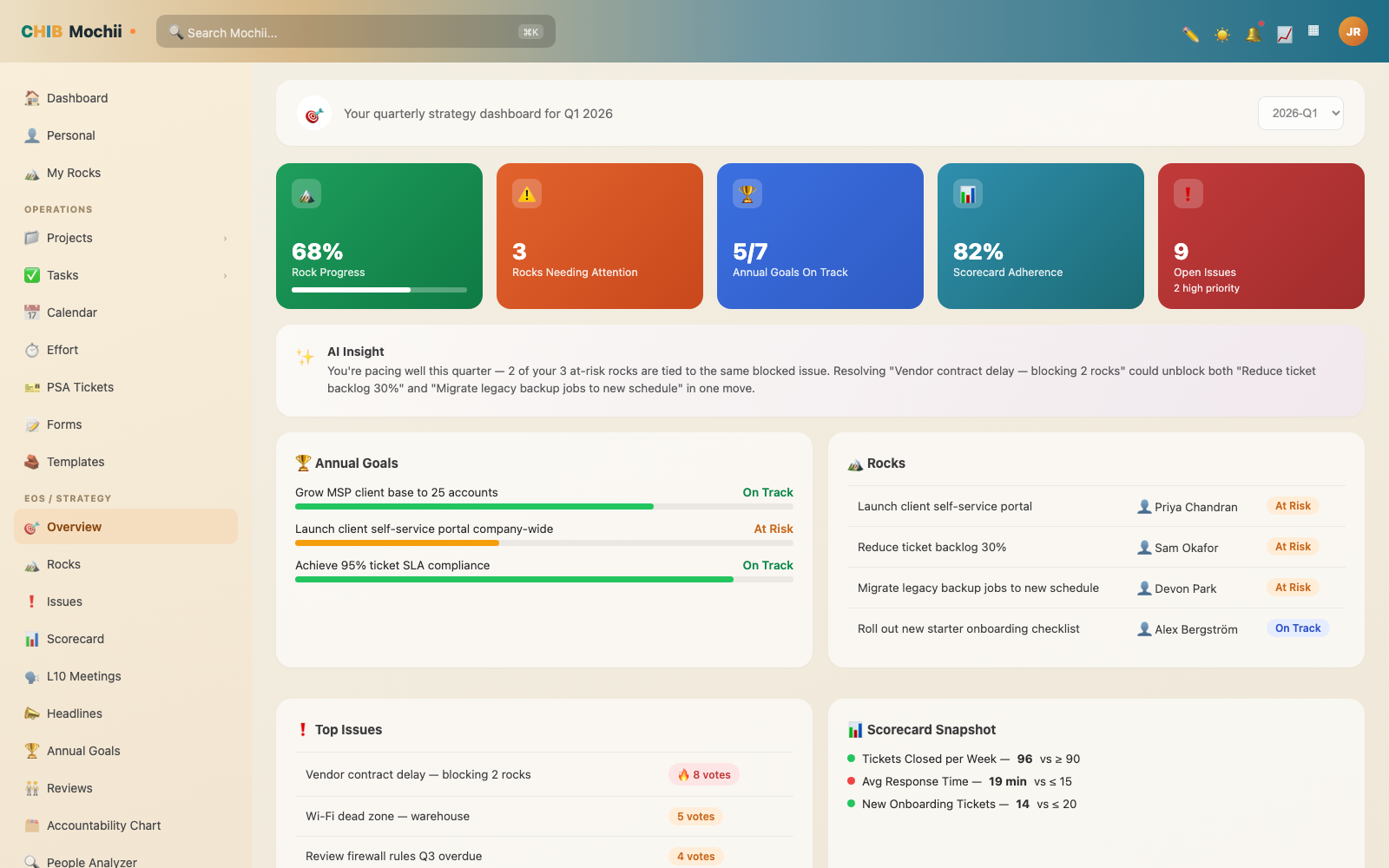
The EOS module — Rocks, Issues, Scorecard, and more.
EOS stands for Entrepreneurial Operating System — a popular playbook (from the book Traction) for running a company without the chaos. The idea: set a few big goals, track a handful of key numbers, and meet weekly to knock down problems. Mochii gives you a screen for each of those pieces so you're not juggling spreadsheets.
In the EOS playbook, the V/TO is the foundational one-page document — your core values, your core focus, your 10-year target, your marketing strategy, your 3-year picture, and your 1-year plan — that everything else (Rocks, Annual Goals) is supposed to ladder up to. Mochii already stores this data behind the scenes, but the dedicated screen for filling it in and viewing it visually hasn't shipped yet. Not usable by a normal user today — just know it's on the way.
The EOS section is built for leaders and project managers, so not everyone on your team will see it. If it's missing from your menu, that's on purpose — your team either hasn't turned it on or your role doesn't include it. See Who can do what.
The Overview: your cockpit
The EOS Overview — titled "Your quarterly strategy dashboard" — is the one-screen health check, and it doubles as the leadership view. Pick a quarter from the dropdown in the top-right, and Mochii rolls everything up for that quarter into five quick number cards across the top:
- Rock progress — how many of this quarter's Rocks are done, and whether you're on track.
- Rocks need attention — a count of the Rocks that are off-track or at risk.
- Goals on track — how your Annual Goals are doing, judged by the Rocks underneath them.
- Scorecard adherence — how many of your numbers hit target last week.
- Open issues — total open Issues, with high-priority ones called out.
Below the numbers you get summary cards — Annual Goals with little health bars, a short Rocks list, an Open Issues breakdown by priority, a Scorecard snapshot, and your next few upcoming L10 meetings. It's the whole company at a glance, and every card links into the full tool. Before a Monday or a meeting, start here.
Rocks: your big quarterly goals
A Rock is a big, important goal you commit to for the next 90 days. The name comes from the "rocks in the jar" idea — put the big rocks in first, and the small stuff (the sand) fills in around them. The Rocks screen ("Manage quarterly priorities and strategic goals") is a filterable table. Each Rock has an owner (one person on the hook for it), a type (Company, Department, or Individual), a quarter, an optional linked project and due date, and a status:
| Status | Means |
|---|---|
| On Track | Going to plan — relax, but keep going. |
| Off Track | Behind. Needs attention or help. |
| At Risk | Could go either way — watch it closely. |
| Done | Nailed it. 🎉 |
Hit New Rock to add one, or click any row to open it in a side drawer and edit the details. The search box and the filter button let you narrow by quarter, owner, status, or project — handy when the list gets long. You'll also find My Rocks near the top of the menu — a focused view of just the ones you own.
A good Rock is specific and finishable in a quarter. "Improve marketing" is a wish. "Launch the new website and get 500 signups" is a Rock.
Rock Milestones: checkpoints along the way
Open any Rock and you'll find a Milestones tab — a checklist of smaller checkpoints inside that Rock, each with its own title, due date, and status (open or done). A progress bar sits right at the top and fills in based on how many milestones are checked off, so you can see how close you are without doing the math yourself. Add, reorder, or delete milestones right inline — no separate screen needed.
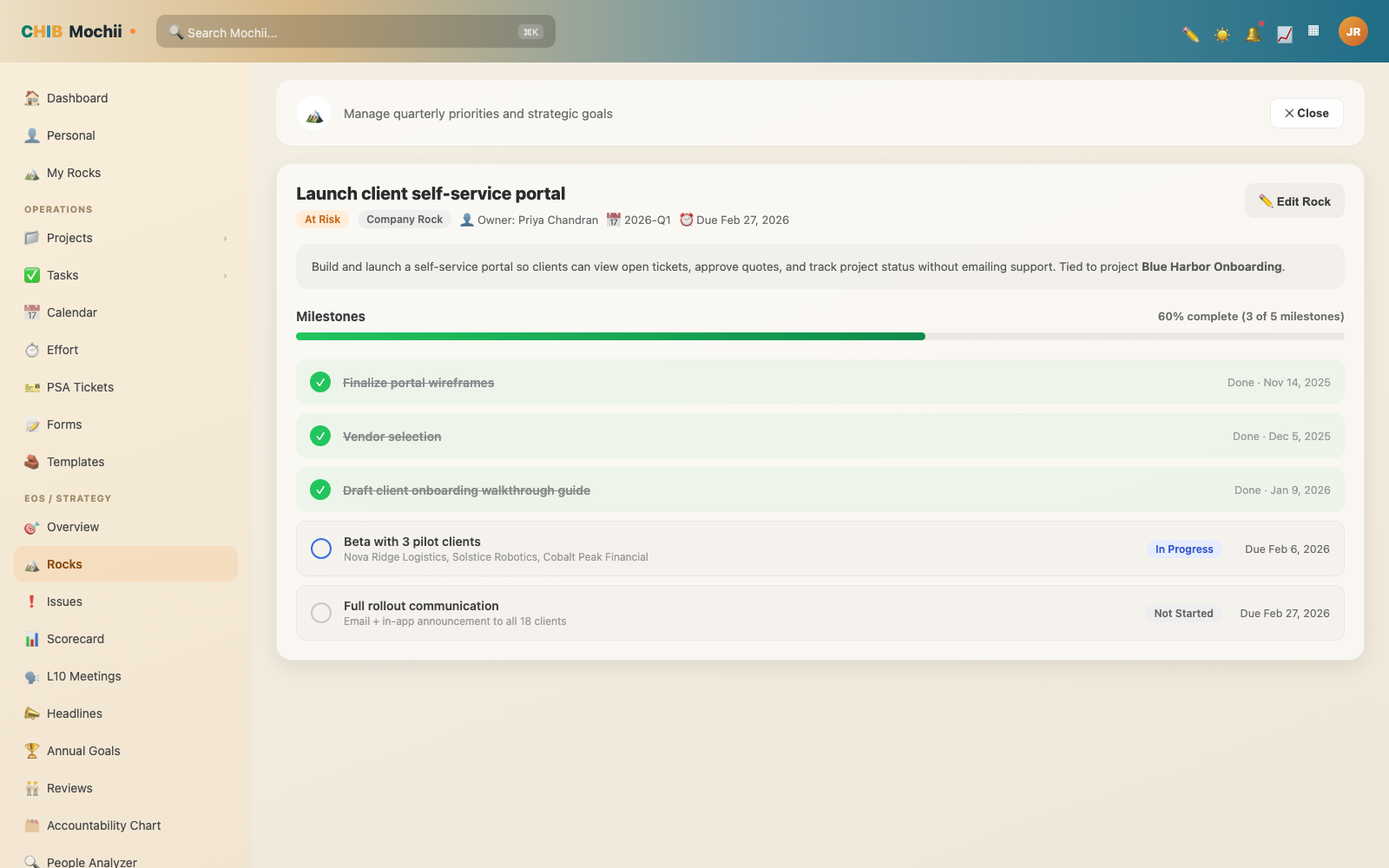
Rock Milestones — checkpoints inside a Rock.
Milestones are great for breaking a big 90-day Rock into weekly checkpoints, so you're not guessing whether you're on pace until the quarter's almost over.
Issues: the problem-solving list
Every team has problems, blockers, and "we should really deal with that" items. Instead of letting them float around, you drop them on the Issues list ("Track and resolve organizational issues") and work through them. EOS calls this IDS:
- Identify — name the real problem (not just the symptom).
- Discuss — talk it through.
- Solve — decide what to do, and who'll do it.
The Issues table shows each item's status (Open → In Progress → Resolved), its priority (High, Medium, Low), an owner, and a source tag so you know where it came from — Internal, L10, Scorecard, Client, or Other. You can also link an issue to a Rock or a project, so the connection is obvious.
When the answer to an issue is "someone needs to go do a thing," open it and either Link to existing task or Promote to task — that creates a real task in the project you pick and ties it back to the issue, so it doesn't get lost. Each issue also has an Activity tab that keeps a running history of what changed.
An "Issue" in EOS isn't only a problem — it's anything worth a team decision: a roadblock, a risk, an idea, an opportunity. The Issues list is just your team's parking lot for "let's talk about this," so it doesn't derail the work in the moment.
Voting on Issues
Every issue row has a small star/vote toggle — anyone can vote for an issue to say "yes, let's prioritize this." Vote counts show right in the list, and a Top Voted sort lets the issues with the most consensus support naturally rise to the top before your L10.
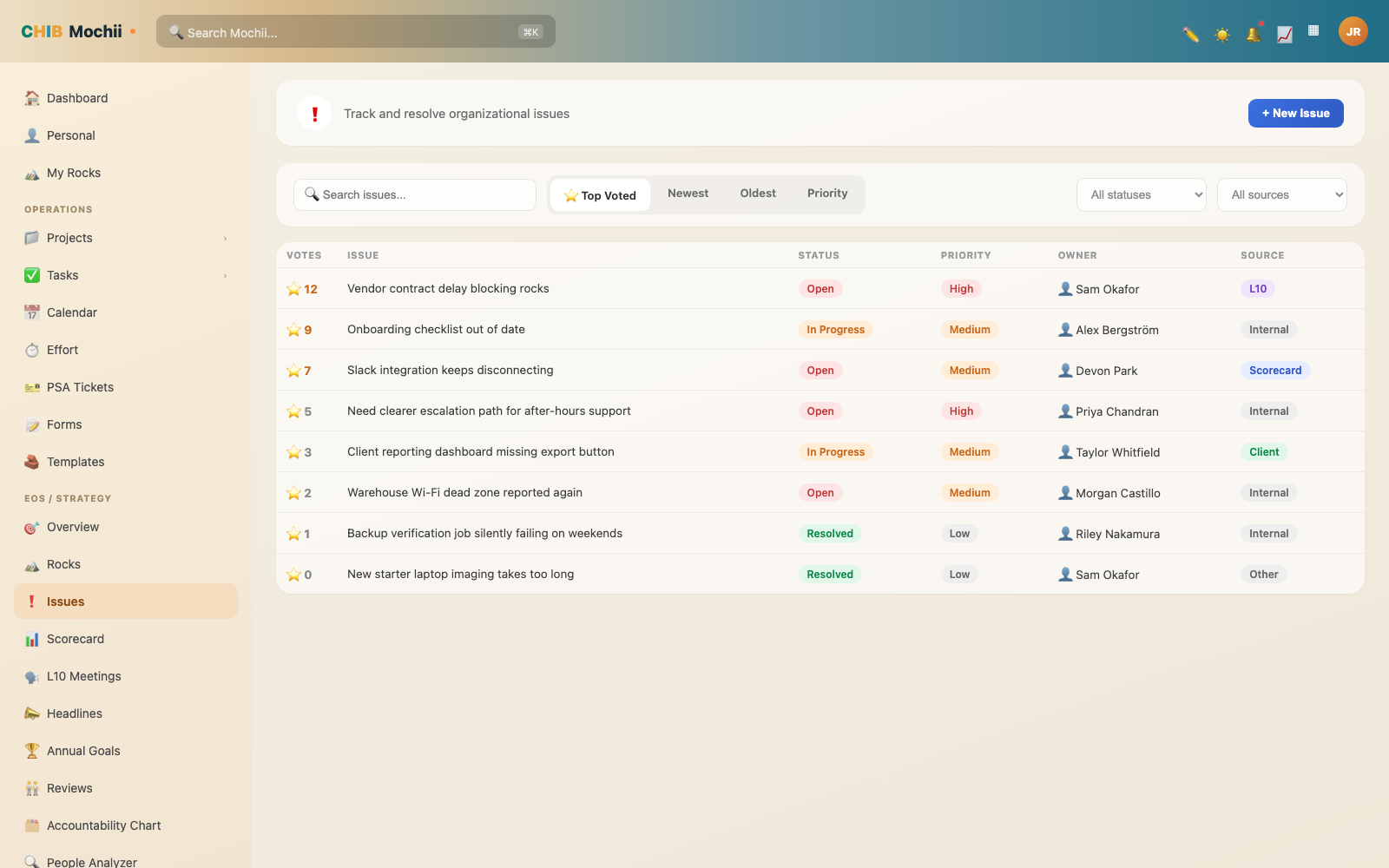
Voting on Issues — the most agreed-on problems rise to the top.
It's a lightweight way for the loudest problem to not always win — the most agreed-on problem does.
Scorecard: the numbers that matter
The Scorecard ("Track your weekly measurables") is a short list of key numbers you check every week — things like revenue, new tickets, or calls made. It's laid out as a grid: each metric is a row, with its owner and target, then a column for each of the last 8 weeks. Click any week's box to type that period's value right inline.
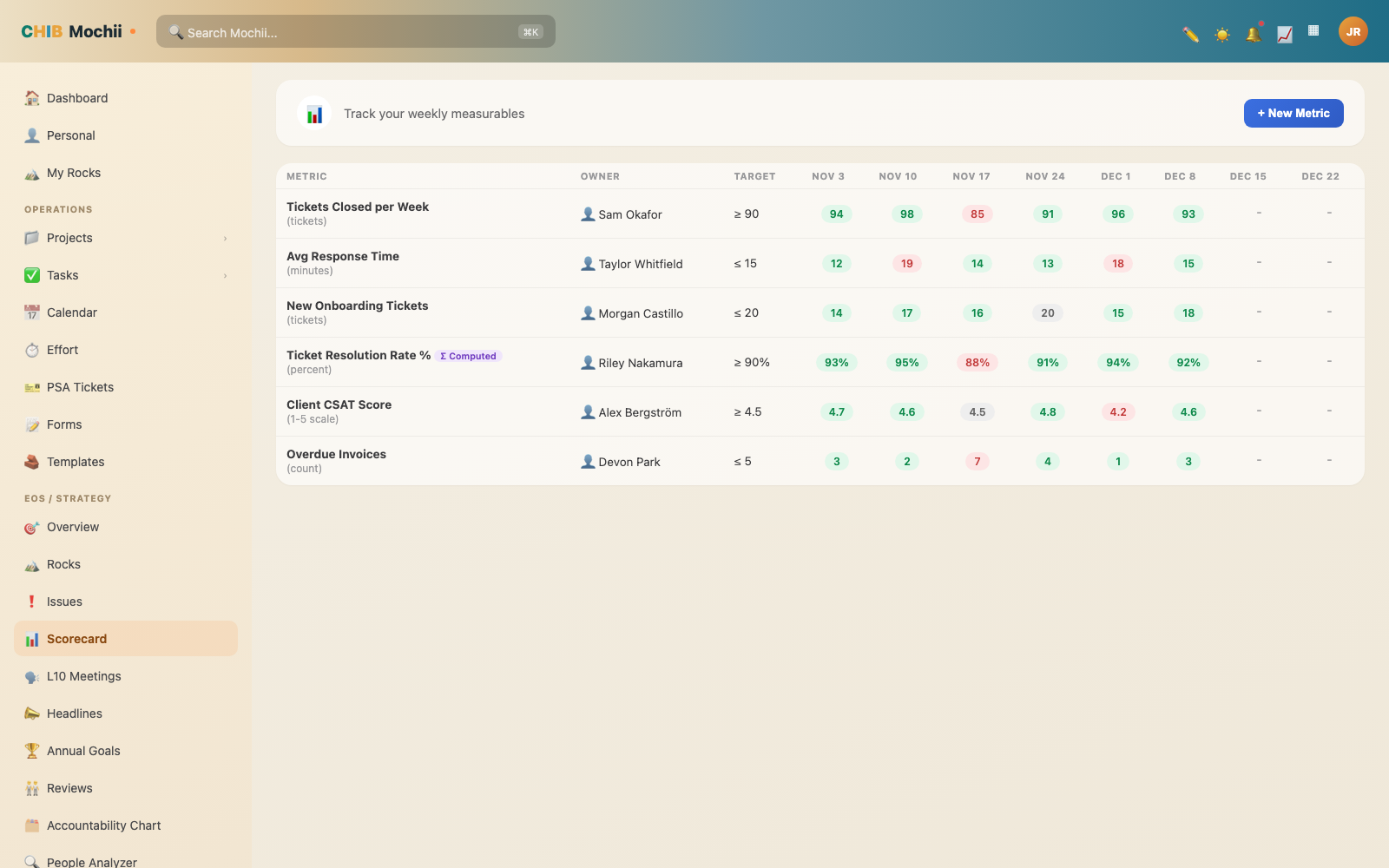
The Scorecard — your weekly measurables.
When you add a metric (New Metric), you give it a name, an optional unit (like $ or %), a frequency (weekly or monthly), an owner, and a target — either "at least" (≥) or "at most" (≤) a value. The boxes then colour themselves: green when you're hitting target, red when you're missing, neutral blue otherwise, and grey when there's no number yet. You can also flip on Calculated metric (look for the Σ icon) to have Mochii derive a value automatically from your other metrics with a formula — handy for totals — and those cells are read-only.
Keep your Scorecard short — 5 to 15 numbers, tops. The point isn't to track everything; it's to spot trouble early. A red box this week is a problem you catch now instead of at quarter's end — and a perfect candidate for an Issue.
L10 Meetings: the weekly huddle
The L10 (short for "Level 10") is EOS's weekly leadership meeting — same day, same time, same agenda every week. Mochii gives it a home ("Schedule and manage your Level 10 meetings"): hit Schedule Meeting, name it, pick a date and time, set a type (Leadership, Department, Client, or Other), a duration (90 minutes by default), and a status (Scheduled, In Progress, Completed, or Cancelled).
You can add attendees, and optionally have Mochii spin up a Google Meet link that invites them when the meeting is scheduled. You can also attach files to a meeting. Every meeting shows the Standard L10 Agenda so you can run the same proven flow:
- Segue (5 min) — good news, personal & professional.
- Scorecard Review (5 min).
- Rock Review (5 min).
- Customer/Employee Headlines (5 min).
- To-Do List (5 min).
- IDS — Issues (60 min) — where most of the time goes.
- Conclude (5 min).
Running the meeting live
When it's time for the meeting, open it and hit a button to start the live Meeting Runtime screen. It shows a running clock for the whole meeting plus a per-section timer for whichever agenda item you're on — Segue, Scorecard, Rocks, Headlines, To-Do, Issues, Conclude. Click to move to the next section and the timer resets, so nobody has to eyeball a clock on the wall. You can jot live notes right on the agenda as you go.
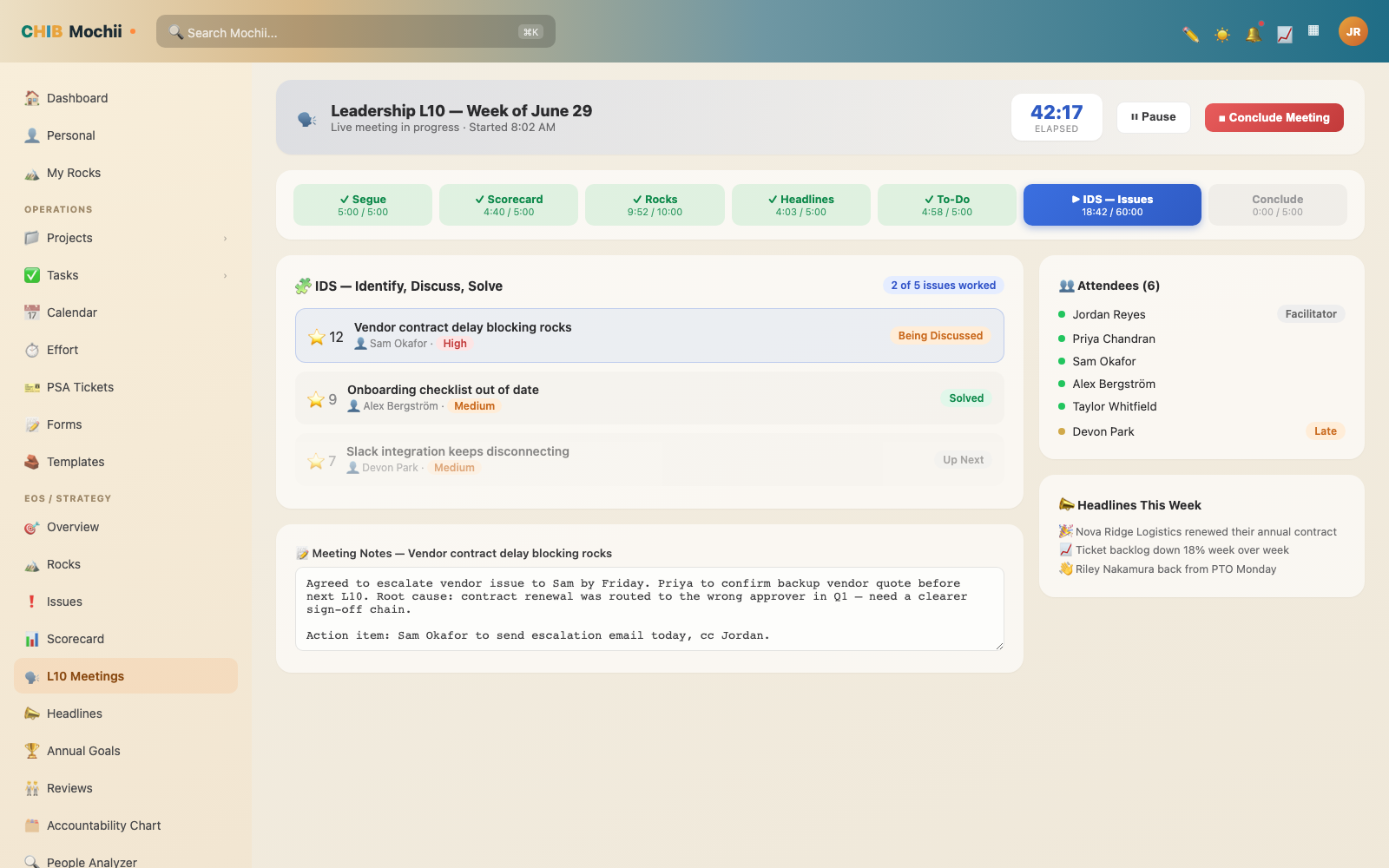
Running an L10 live, with timers and a conclude flow.
When you get to Conclude, a short dialog appears: rate the meeting overall, rate each attendee's engagement (a 1–10 scale, one per person), and add a short summary. Saving that closes out the meeting and stores the ratings for later — over time this gives you a read on whether your L10s are actually getting better.
The idea is that a great meeting should rate a 10 out of 10. Same structure every week means less winging it and more actually-solving-things. Boring on purpose — and that's the magic.
Headlines: good news travels
Headlines are short bits of good news to share at your L10 — "Customer & employee good-news to share in your Level 10 meeting," as the screen puts it. Each headline is either a Customer win or an Employee shout-out, with an optional bit of detail. Hit Add Headline to post one.
Headlines live under three tabs — Open, Discussed, and Archived — so once you've talked about one in the meeting you can mark it discussed (or reopen or archive it later). Think of it as your company's running highlight reel, teed up and ready for the Headlines slot in the agenda.
Headlines and Reviews both carry a Beta badge in Mochii today, so a few details may shift as they're polished. The core flow above is in place.
Accountability Chart: who owns what
This is Mochii's org chart, but built the EOS way — around seats (functions and roles), not people. Each seat has a name (like "VP of Operations" or "Client Success Lead"), a short list of the roles and responsibilities that seat owns, and can be nested under a parent seat to build out the reporting structure as a tree you can expand and collapse.
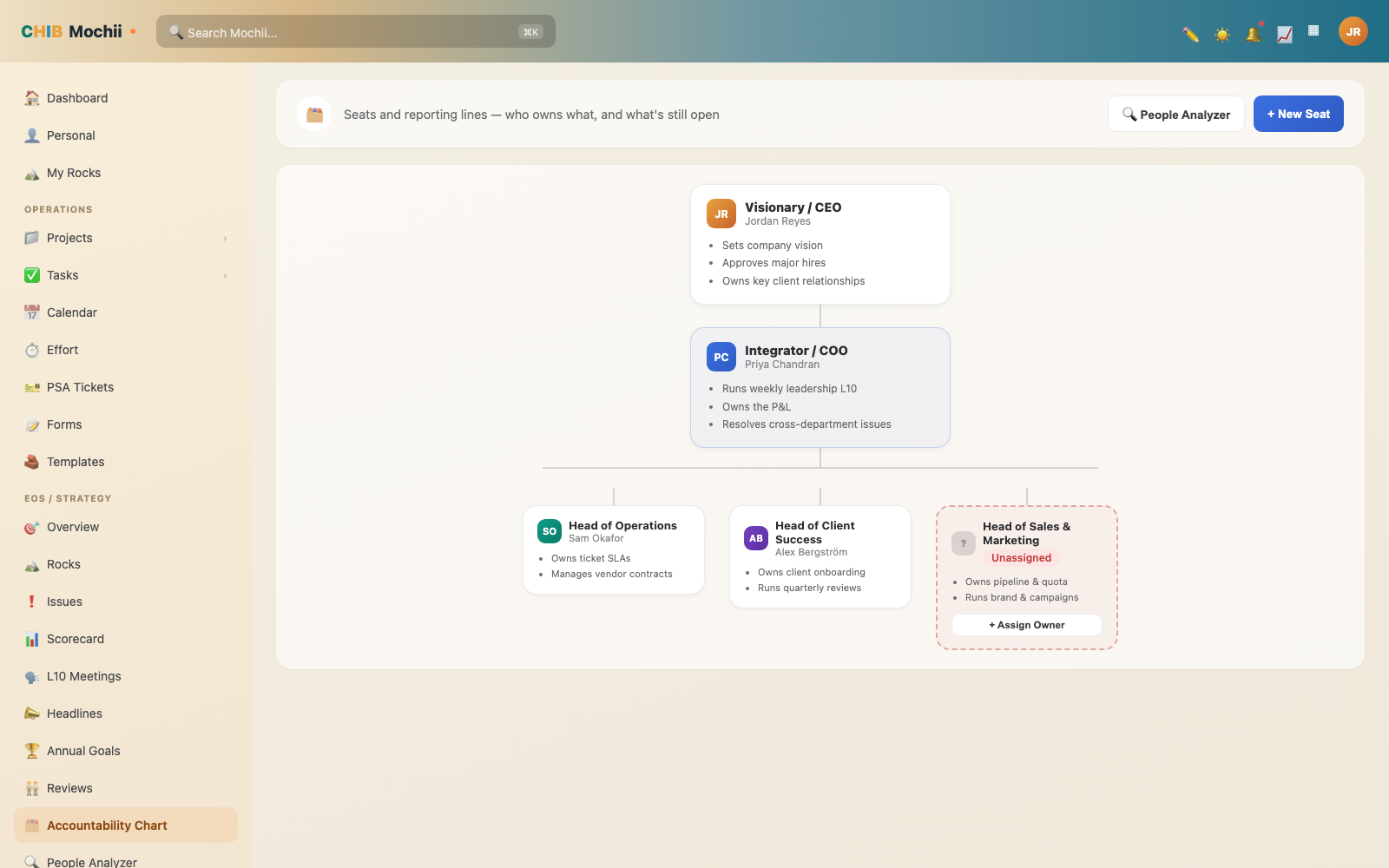
The Accountability Chart — an org chart built around seats.
A seat can have a person assigned to it, or sit open and unassigned — which is itself useful information, since it shows you exactly where the gap is. One person can hold a seat, and a seat can also be vacant. Same org, same structure, just seen through the lens of what needs to get done rather than who's on the payroll.
People Analyzer: right person, right seat
This is EOS's "GWC" framework, built into Mochii. For each team member, you can create an analysis rating them on your organization's core values (a simple +, +/-, or - for each value) and then three yes/no questions: does this person Get it (understand the role and how things work), Want it (actually want this job), and have the Capacity for it (time, skill, and mental bandwidth to do it well). When all three are "yes," Mochii treats that as the person being in the right seat.
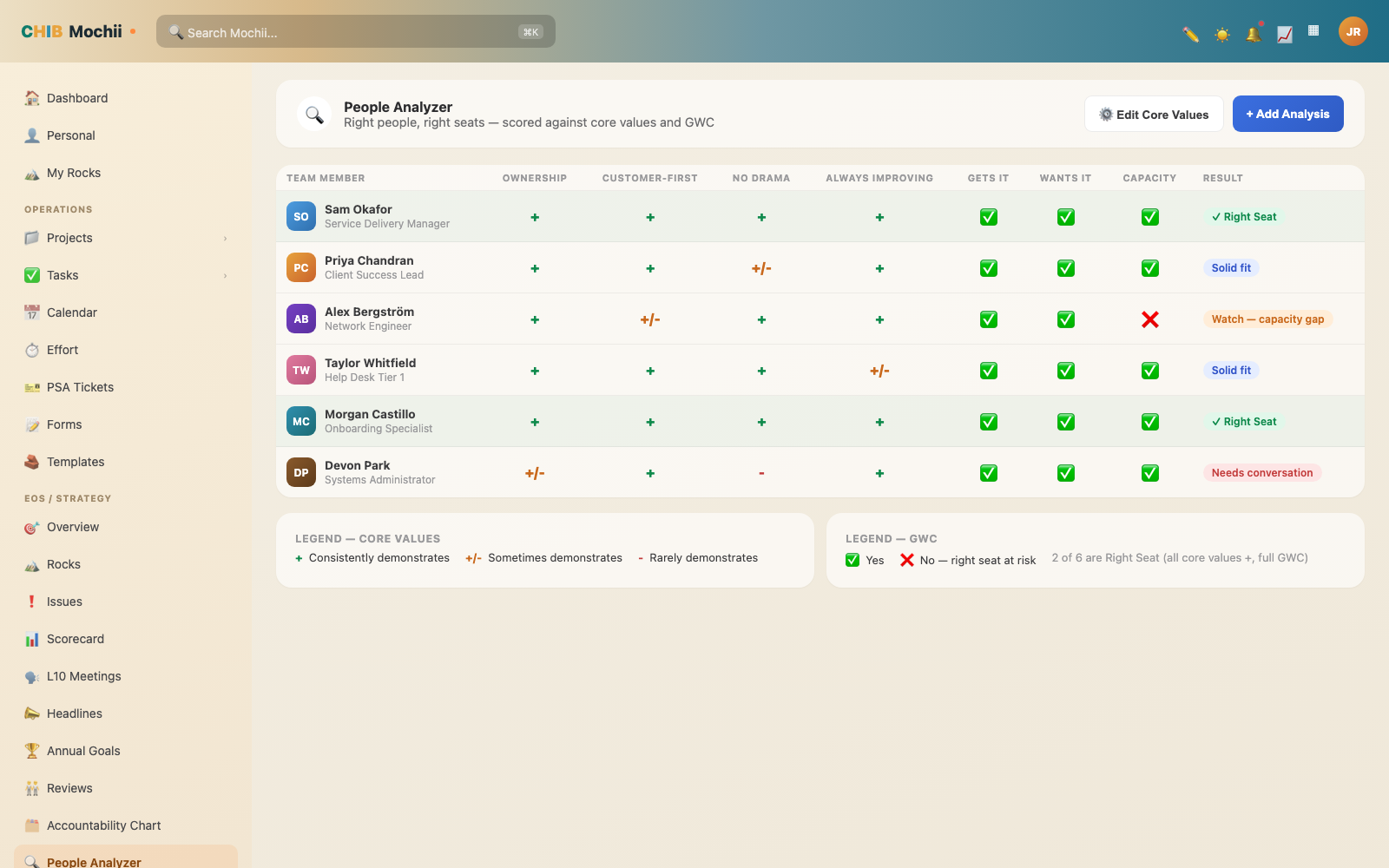
The People Analyzer — GWC ratings for the whole team.
It's meant to be a caring, honest tool for figuring out where someone might be a great culture fit but the wrong role, or vice versa — not a gotcha.
Annual Goals: the year's big picture
Where Rocks are your 90-day goals, Annual Goals are the year-long ones they ladder up to — "1-year strategic objectives aligned with your EOS Vision." The list view shows each goal's owner, focus area, status (On Track, At Risk, Off Track, or Completed), a confidence percentage, a target date, and counts of the Rocks and projects linked to it. Filter by year, or search by name.
Open a goal and you'll find its details plus two sections — Related Rocks and Related Projects — where you can link the work that drives it. Mochii is smart about this: a project linked to one of the goal's Rocks shows up automatically (marked "via rock"), so the through-line from year → quarter → project stays connected without extra busywork.
Reviews: people check-ins
The Reviews & Discussions section is where performance check-ins live — "Quarterly Conversations & Annual Reviews on the EOS cadence." Hit New Review, pick a template (a preset or one of your own), choose the person being reviewed, an optional reviewer, and the period (like 2026-Q2 or 2026).
Each review is a short questionnaire whose questions come from the template — they can be free text, a 1–5 star rating, or a simple yes/no — plus a space for overall notes. Reviews move through Draft → In progress → Completed (a draft bumps itself to "in progress" the moment you start typing), and a completed review can be reopened if you need to revisit it. Filter the list by status, and manage your question templates from the Templates button. The point: reviews become an ongoing conversation, not a once-a-year scramble.
Cascading Messages: getting the word out
Leaders write a message and choose which teams should receive it — the message "cascades" down through the org the way EOS intends: leadership meeting → department meetings → everyone, instead of getting lost in someone's inbox. Anyone who receives one can check it off to acknowledge they've seen it, and the sender can see an acknowledgment tally — how many people, out of the target teams, have checked in.
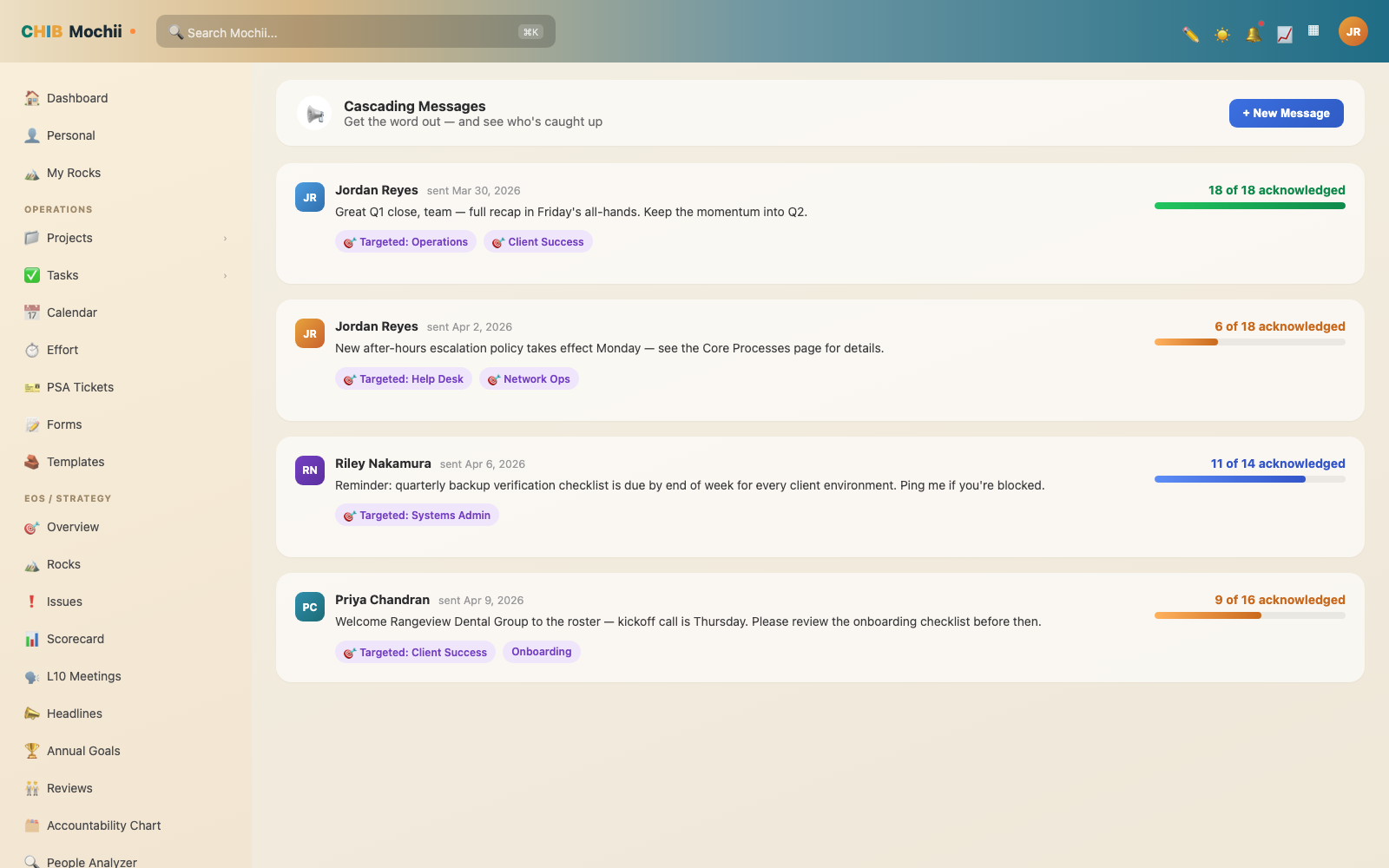
A cascading message, with acknowledgments tracked.
A cascading message can optionally be tied back to the L10 meeting where it originated, so you can always trace a company-wide announcement to the meeting where the decision got made.
Core Processes: how we do things here
A simple library for documenting your company's repeatable processes — onboarding a new client, closing a support ticket, whatever your team does the same way every time. Each process has a name, a description, an owner, and an ordered list of steps you can add, remove, and reorder.
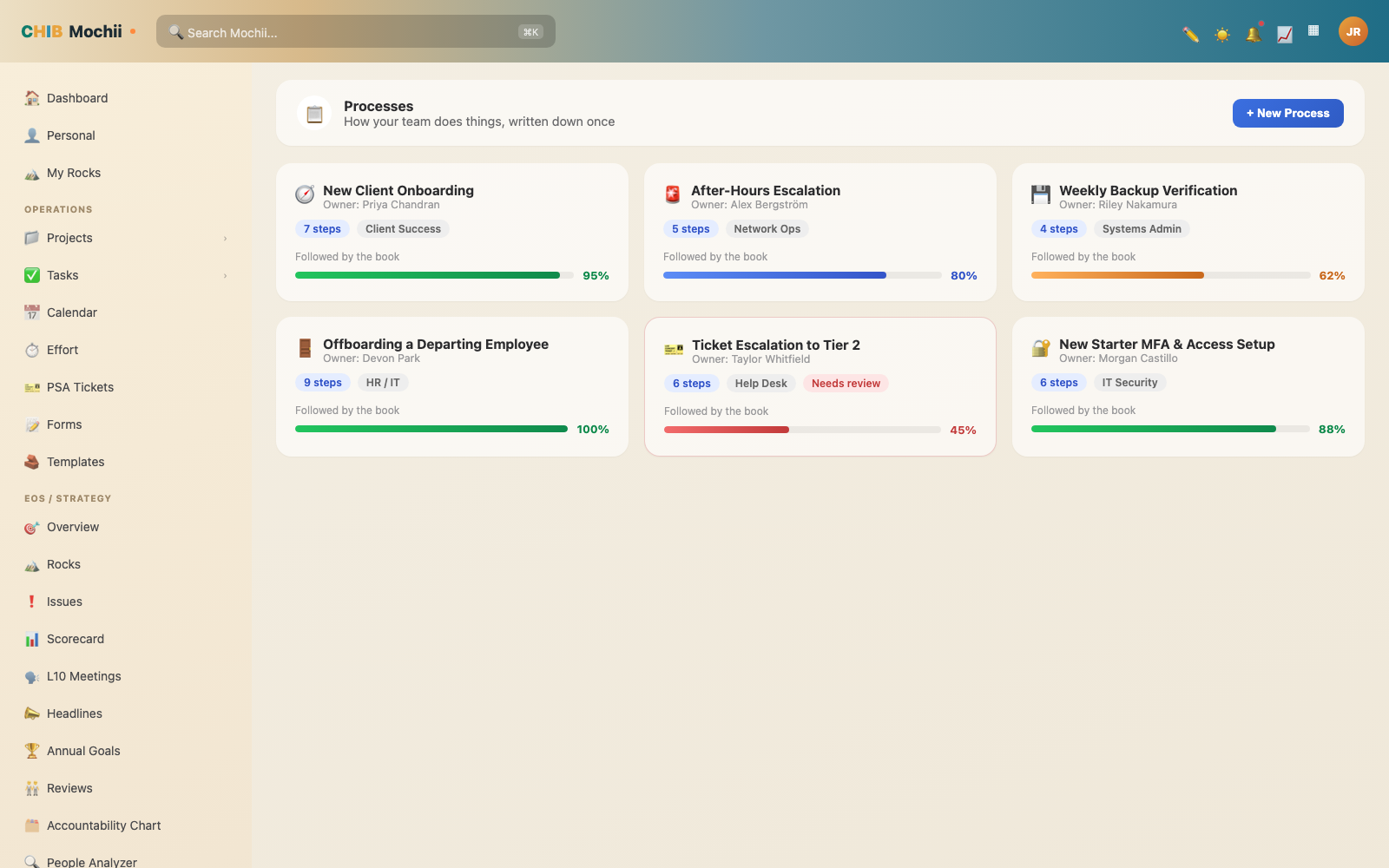
The Core Processes library.
There's also a "percent of the team following this process" field — an honest, self-reported compliance number, not something Mochii tracks automatically, that helps you see which processes are actually being followed versus just written down and ignored.
EOS Reports: the trend lines
A read-only, org-wide reporting page with four charts, always showing everything — no filters to fiddle with:
- Rock Completion — a bar chart, one bar cluster per quarter for the last 6 quarters, showing how many Rocks landed as done, on-track, at-risk, or off-track.
- Milestone Burndown — a line chart tracking Rock Milestone completion rate week by week, so you can see if you're pacing toward finishing this quarter's checkpoints.
- Scorecard Trends — a line chart of your last 10 weeks of Scorecard numbers, one line per active metric, with the target shown as a reference line.
- Issues Throughput — a chart of issues by status (open, in progress, resolved) week by week, so you can tell if your Issues list is actually shrinking or quietly piling up.
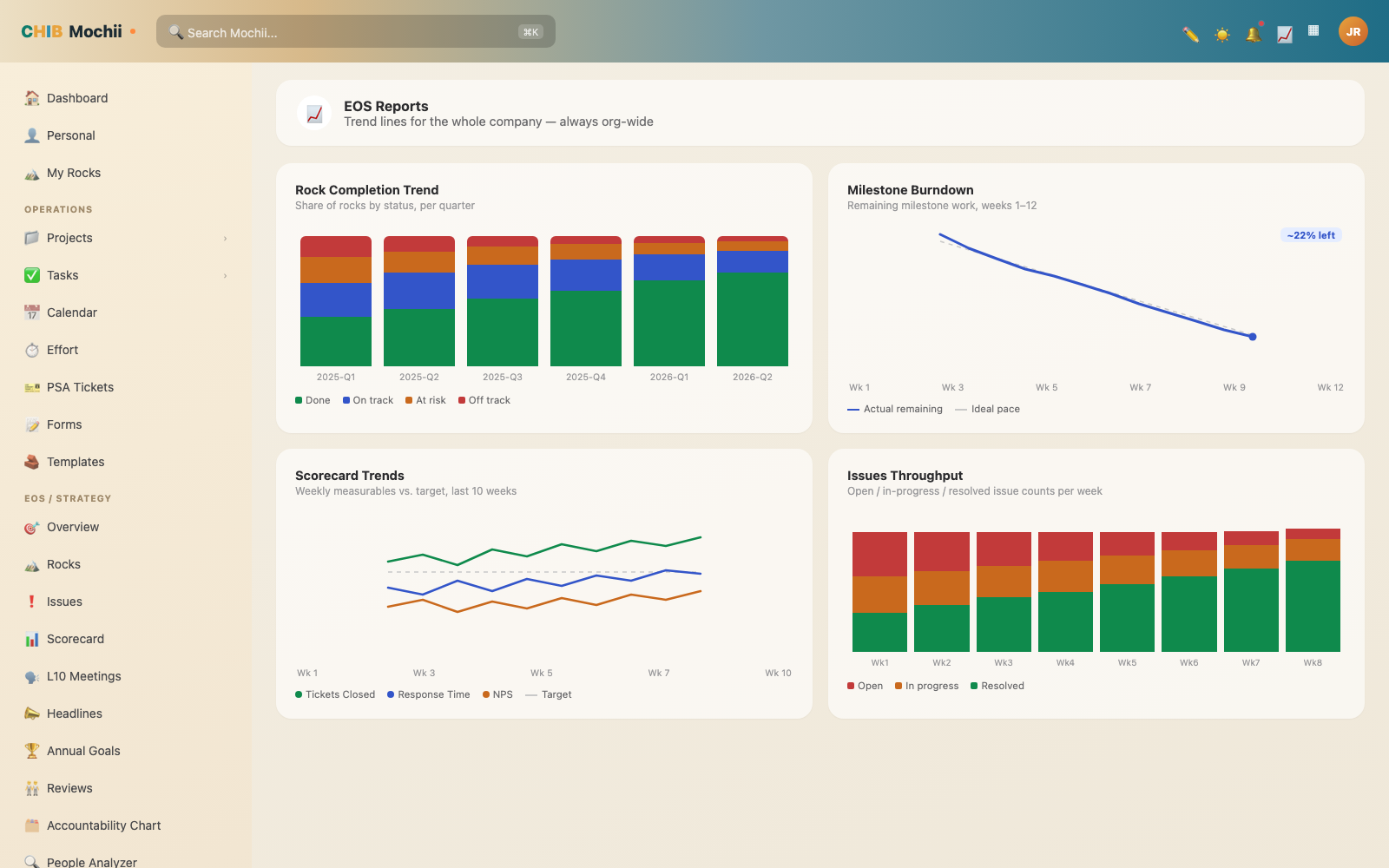
EOS Reports — four trend lines for the whole company.
Quick recap
- The Overview is the leadership cockpit — pick a quarter and see Rocks, Issues, Scorecard, Goals, and L10s rolled up.
- Rocks are your big 90-day goals (On Track / Off Track / At Risk / Done), with Company/Department/Individual types. My Rocks shows just yours, and Milestones break a Rock into checkpoints with their own progress bar.
- Issues use IDS — Identify, Discuss, Solve — moving Open → In Progress → Resolved, and can be promoted into tasks. Voting and a Top Voted sort let the most agreed-on problems rise up.
- The Scorecard tracks a short list of weekly or monthly numbers against ≥/≤ targets, with optional computed metrics.
- L10 Meetings run the standard 7-step agenda, and you can run it live with the Meeting Runtime — a running clock, per-section timers, and a Conclude step that rates the meeting and each attendee. Headlines tee up good news for it.
- The Accountability Chart is your org chart built around seats (not people), and the People Analyzer rates GWC — Get it, Want it, Capacity — to help find the right person for the right seat.
- Annual Goals hold the year's direction and link to the Rocks and projects below them; Reviews keep people check-ins on the EOS cadence.
- Cascading Messages push announcements down through the org with acknowledgment tracking, and the Core Processes library documents how your team repeats its best work.
- EOS Reports is a read-only page with four trend charts: Rock Completion, Milestone Burndown, Scorecard Trends, and Issues Throughput.
- The V/TO (Vision/Traction Organizer) is coming soon — Mochii stores the data today, but the screen to fill it in hasn't shipped yet.