Manual › Getting started
Step 1 · For everyoneGetting started 🚪
There's no password to remember and nothing to install. You sign in with the same work account you already use for email, and you're in. Here's the whole thing, start to finish.
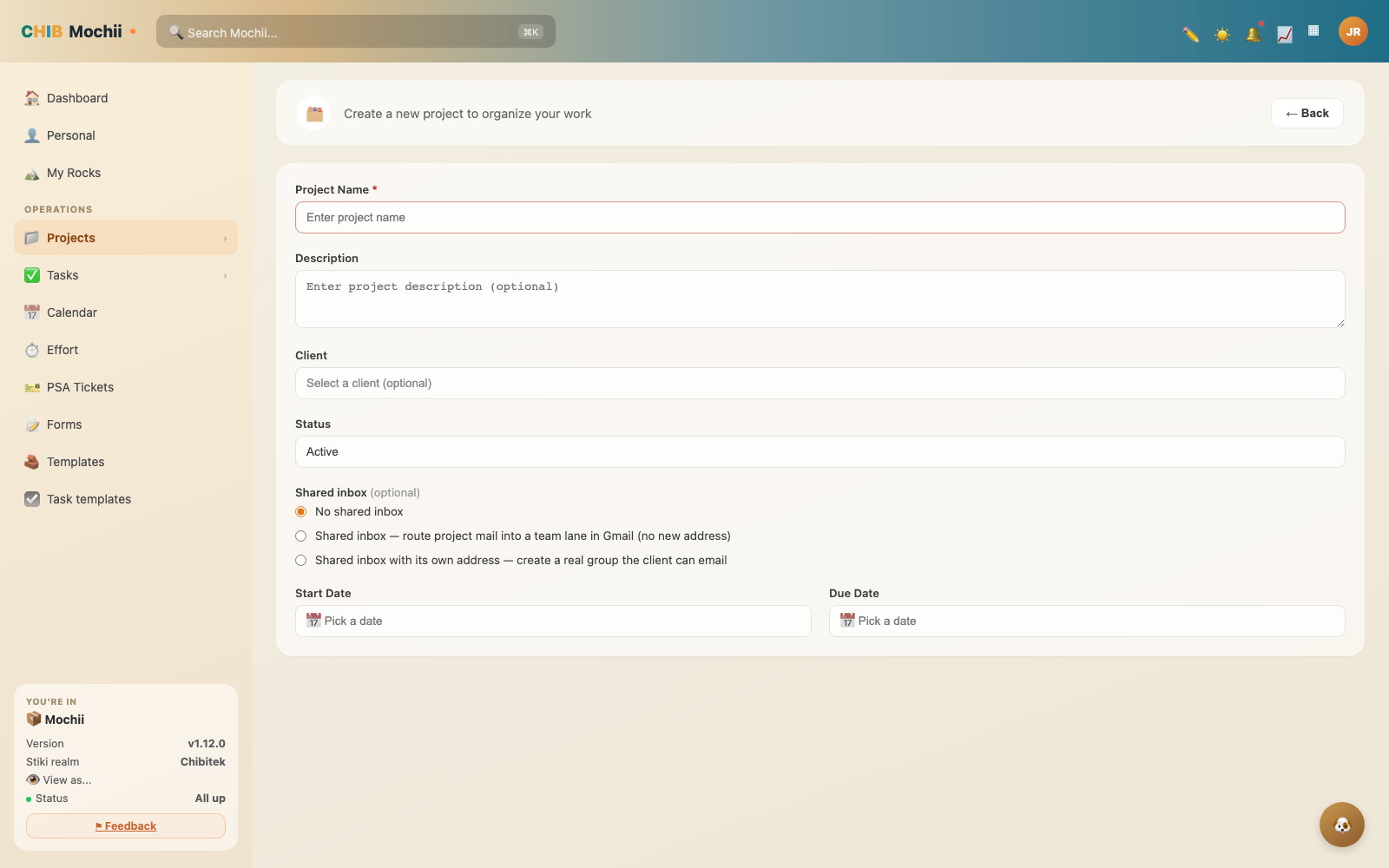
Starting your first project.
Signing in
Mochii runs in your web browser — no app to download. To get in:
- Go to your team's Mochii web address (your admin will send it — it's usually
getmochii.comor a link that ends in your company's name). - Click Sign in. Mochii hands you over to a secure sign-in page run by Stiki (more on that in a sec).
- Pick Continue with Microsoft or Continue with Google — whichever one your work email uses.
- Approve the sign-in. You'll land right on your Dashboard. That's it. You're in. 🎉
Stiki is the front door for all of Chibitek's tools, not just Mochii. Instead of a separate username and password for every app, you sign in once with Stiki and it lets you into the tools you're allowed to use. Same idea as "Sign in with Google" on other websites — one trusted door, no sticky-note passwords.
Use the work account your team set you up with — not a personal Gmail. Mochii matches you to your spot on the team by your work email, so the right one gets you to the right place.
Your first time in
The very first time you sign in, Mochii says hello with a little Welcome pop-up. It offers a short guided tour — a few clicks that point out where the important stuff lives.
You've got two choices, and neither one is wrong:
- Take the tour — best if you like to be shown around before diving in.
- Skip it — best if you'd rather poke around yourself. (Be honest, it's most of us.)
Skipped the tour and changed your mind? No problem. Look for Help & Guides at the bottom of the left-hand menu — the tours live there forever, ready whenever you want a refresher.
Joining your team's workspace
Here's a thing that trips people up: you don't sign yourself up for Mochii. There's no "Create an account" button. Instead, an admin on your team invites you by email. When they do, your spot — and what you're allowed to see — is ready the moment you first sign in.
So if you sign in and Mochii doesn't seem to know who you are, it usually means one of two things:
- You haven't been invited yet, or
- You were invited with a different email than the one you just signed in with.
Either way, the fix is the same: ask whoever set up Mochii for your team (your admin) to check your invite. One quick message and you'll be sorted.
If Mochii ever says it "couldn't match your account," don't panic and don't make a second account. It almost always means your sign-in email and your invited email don't match. An admin can line them up for you in a few seconds.
Where you land — and what's next
After you sign in, you start on your Dashboard: your personal morning-coffee view of what's on your plate today. We'll give you the full tour of it — plus the menu, search, and notifications — on the next page.
Quick recap
- Mochii runs in your browser — nothing to install.
- Sign in with Microsoft or Google, using your work account. Stiki is the shared, secure front door.
- First time in, you'll get an optional tour — and you can replay it anytime from Help & Guides.
- You don't sign yourself up — an admin invites you. Can't get in? Ask them to check your invite email.